Software Upgrade Assistant (Orbic) - Repair Assistant
Here's how to repair software issues on your Orbic device or complete an update if the software update failed.
This helps you repair the software on your Orbic device using your laptop/PC.
The repair process may take up to 45-90 minutes. Do not disconnect the device from the computer during the repair process.
- The Software Repair process is identical for Windows® and Macintosh.®
- To use the Software Repair Assistant (SRA), ensure the wireless device is powered on and able to be unlocked if necessary then connect it to a compatible computer using the supplied USB cable.
- If the device is not recognized immediately, pull down the notification panel to switch the device mode from "Charge Only" to "Software Installation" mode.
- The most recent software version becomes available on the SUA/SRA tool within a week of a new software update. During this time, the SUA/SRA is unavailable for usage.
- Ensure the Software Upgrade Assistant (SUA) software is installed. Refer to Initial Setup - Software Upgrade Assistant for assistance.
- Ensure the wireless device is powered on, unlocked (if device lock-enabled), and connected to a compatible computer using the supplied USB cable.
- From the device, press thedown key, then select the USB connection entry, followed by selectingFirmware update mode.
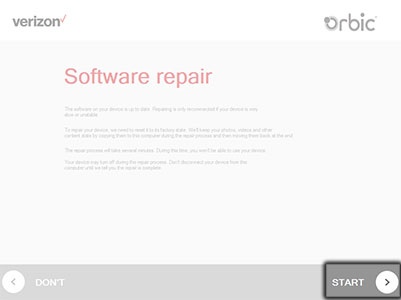
- If the update fails to install or the device is up-to-date, click theSTART buttonfrom the 'Software repair' screen.
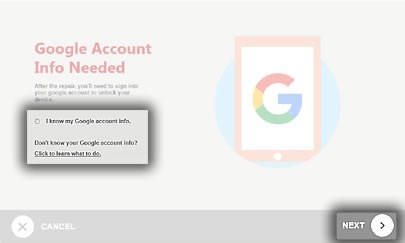
- On the Google Account Info Needed screen, click the "I know my Google account info" checkbox then clickNEXTto begin the repair.If the Google account info is unknown, click the "Click to learn what to do" link and follow the instructions to remove the Google account from the device.The repair may take up to 45-90 minutes to complete.
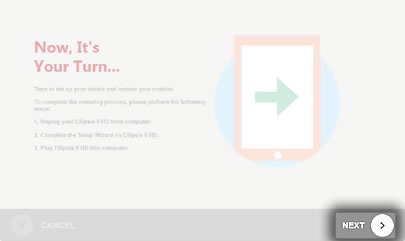
- From the 'Now, It's Your Turn...' screen, unplug your device, complete the Setup Wizard, then plug the device back into the computer and clickNEXT.This restores the content to your device, which may take up to 10-15 minutes to complete.
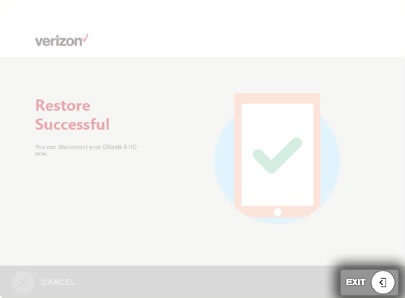
- When the restoration process is complete, clickEXITand disconnect your device.