Digital Secure App (Apple iOS) - Perform a System Scan
Here's how to perform a manual scan via the Digital Secure app on your Apple iOS device.
Learn how to check if your Apple® iOS device's operating system is up to date to protect against security threats.
Frequent scans when using the Digital Secure app may decrease battery life and increase data usage.
- Open the Digital Secure app.
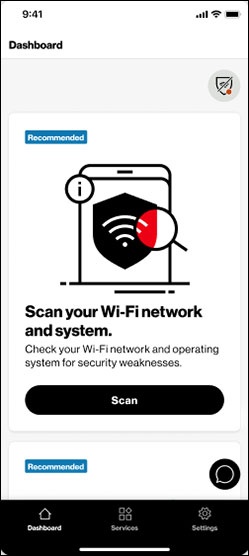
- From the Dashboard, scroll down to ‘Scan your Wi-Fi network and system’ then tapScan.Alternatively, from the Services tab, scroll down to ‘System Scan’ then tap the service card.
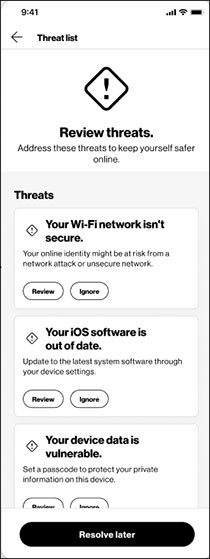
- To resolve system threats found, tapReview threats.
- Address each threat in the list by tappingReviewand follow the prompts to resolve.