Digital Secure App - Send Download Link via Email or SMS
Here's how to send an invite via email so you can install Digital Secure on your Windows PC or Mac.
Subscribers of Digital Secure Premium can extend their protection to their home computers, tablets and laptops by sending a download link via email or SMS.
Install Digital Secure on Other Devices from App
- Open the Digital Secure app.
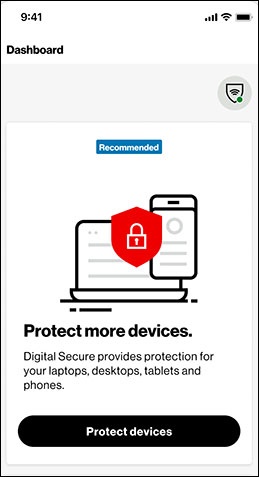
- From the Dashboard screen, scroll down to the ‘Protect More Devices’ section then tapProtect Devices.
- From the ‘Send a download link to protect another device’ screen, tapSend link.
- Select one of your device's messaging apps (iMessage, Gmail, etc.) to send a message with the link.
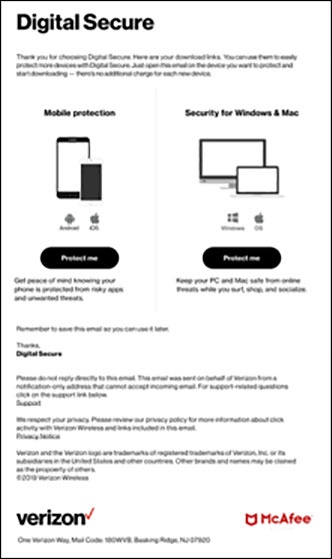
- Open the email or SMS on the device you want to protect then tapProtect meto download Digital Secure.
Install Digital Secure on other devices from My Verizon Online
- Subscribers of Digital Secure Premium can sign in to My Verizon from a web browser using a user ID or mobile number that has Account Owner or Manager access privileges.
- Once signed in, navigate .
- Scroll down to the ‘Protect all your devices’ section then click 'Download' or 'Send Link'.Send Link allows you to extend protection to another device by Email or SMS.
- Email: Enter in the email address then clickSend Link.
- SMS: Enter in the phone number then clickSend Link.
- From the device you want to protect, open the email or text then tapProtect meto download the app.