Google Pixel 3a - Capture a Screenshot
Here's how capture a screenshot on your Pixel 3a / 3a XL.
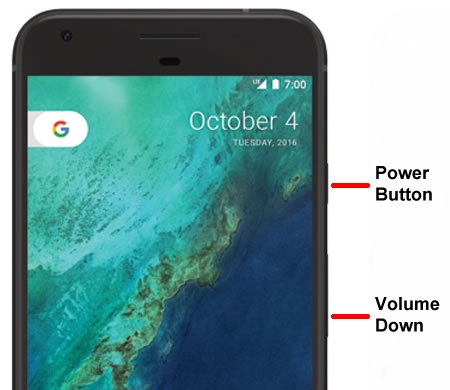
- To capture a screenshot, simultaneously press and hold thePowerandVolume Down buttons.
- Once you capture a screenshot you'll be presented with the following options:If no option is selected, the image automatically saves in the Gallery.To view the screenshot you've taken, navigate: from a Home or the Apps screen.
- Share
- Edit
- Tap on the screenshot to open the image editor.
- After making the desired changes to the screenshot, tap one of the following:
- Donethen choose an option:
- Save
- Delete
- Share icon
then choose an option:
- Gmail
- Drive
- Photos
- Messages
- Delete icon
then choose an option:
- Delete
- Cancel