Remove Device From Find My - iCloud Website
Here's how to remove Find My iPhone from the iCloud website.
To avoid activation issues, make sure the Find My app is turned off before activating your new iPhone®.
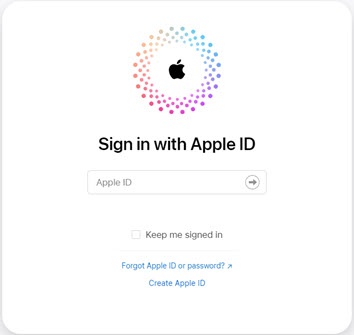
- From a web browser, sign in to iCloud® using your Apple ID and password.URL: www.icloud.com/#find
- ClickFind My.
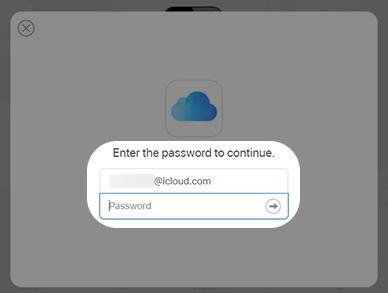
- Enter your Apple ID password then clickSign in.
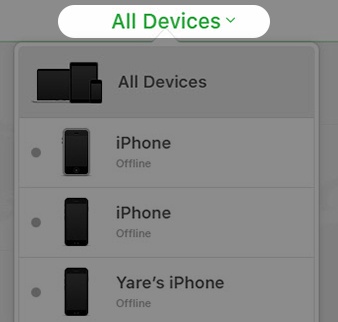
- ClickAll Devices.
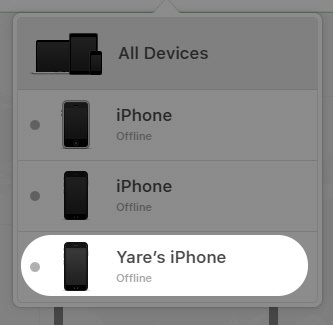
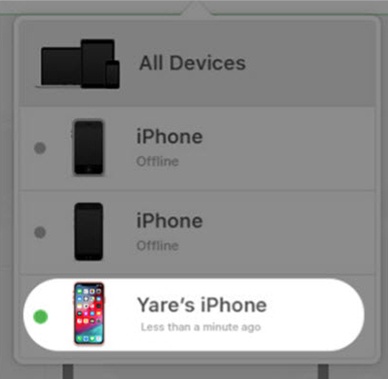
- Select the desired device.The dot to the left of the device name indicates its status.
- A gray dot indicates it's offline.If offline, the erase begins the next time it connects to a Wi-Fi or Cellular network.
- A blue or green dot indicates it's online.
- ClickErase iPhone.Option selected may vary depending on device.If you no longer have the device because you gave it away or sold it, you need to remotely erase it before you can remove it from the account.Content from the device is erased but not any of your previous backups stored in iCloud. Once completed, an email is sent.
- From the prompt, clickErase.
- Enter the Apple ID password and clickNext.
- If prompted, enter the Two-Factor Authentication code.
- If prompted, review the Apple ID and Privacy then clickContinue.
- If prompted, from the 'Trust this browser' screen click 'Don't Trust' or 'Trust'.
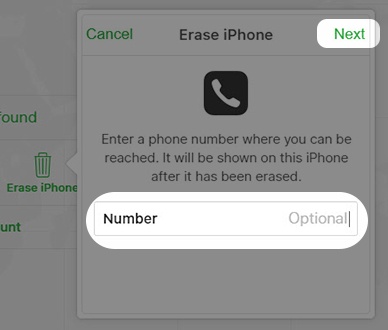
- If preferred, enter a phone number then clickNext.
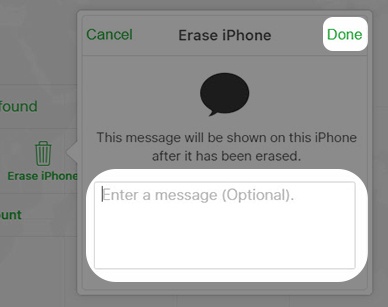
- If preferred, enter a Message in the text box then clickDone.
- From the prompt, clickOK.
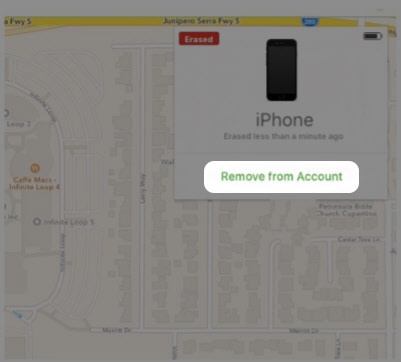
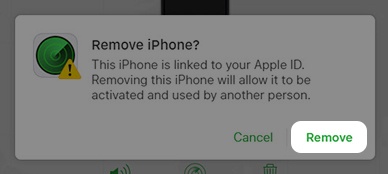
- ClickRemove from Account.
- ClickRemove.
- Enter the Apple ID password and clickRemoveto confirm.