Apple iPhone - Dual SIM with an eSIM - Switch Designated iMessage / FaceTime Number
Here's how to change the number that uses iMessage / FaceTime on your dual SIM capable iPhone.
If you need to switch the mobile number used for iMessage® and FaceTime® on your Dual SIM with an eSIM capable Apple® iPhone®, follow these step-by-step instructions.
- The steps below apply to the following Apple iPhone models:
- iPhone XS / XS Max and newer models
- iPhone SE (3rd Gen)
- With Dual SIM setup on your device, you can use iMessage and FaceTime with two mobile numbers. Select the mobile number(s) by doing the following:
Select Number(s) Used for iMessage
- From a Home screen, navigate:.SettingsMessagesIf an app isn't available on your Home screen, swipe left to access the App Library.
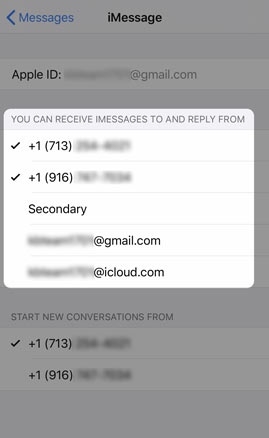
- TapSend and Receive.
- Select the mobile number(s) you'd like to use with iMessage.Selected when a checkmark is present.
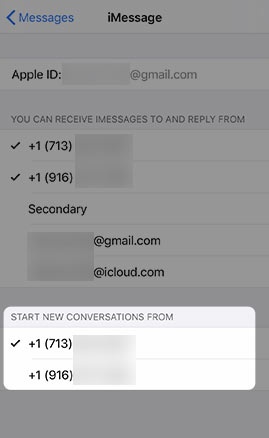
- If 2 mobile numbers are selected, select the desired number used to start new conversations.Selected when a checkmark is present.

For additional Dual SIM info, check out this Apple article.
Select Number(s) Used for FaceTime
- From a Home screen, navigate:.SettingsFaceTimeIf an app isn't available on your Home screen, swipe left to access the App Library.
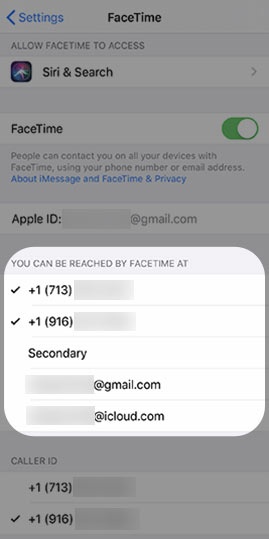
- From the 'YOU CAN BE REACHED BY FACETIME AT' section, select the desired number(s) used for FaceTime.Selected when a checkmark is present.
For additional Dual SIM info, check out this Apple article.