One Talk Portal - Simultaneous Ring
Here's how to set a line to ring to multiple phones when called, via the One Talk portal.
- Turning on Simultaneous Ring causes all of the user's devices sharing the same number to ring during an incoming call.
- Setting Simultaneous Ring on individual One Talk lines can alter what devices receive the call. If a call is rejected from any of the ringing lines, the caller will be directed to that number's voicemail.
- If Simultaneous Ring is turned on and any of the simultaneously ringing lines are set to call each other, a call loop is created which causes the caller to hear dead air or a disconnect recording.
- Sign in to My Business.
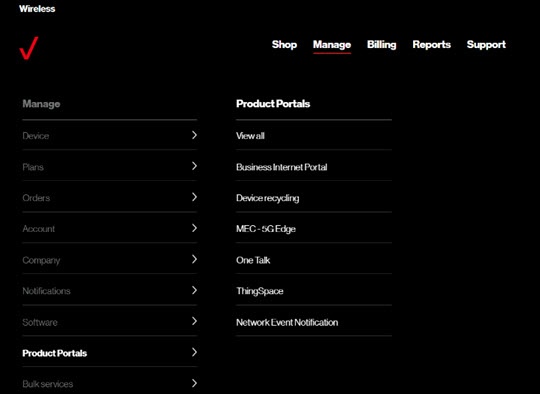
- ClickManage(top of screen).
- Mouse overProduct Portalsthen clickOne Talk.If necessary, clickView all.
- From the 'I want to' section, clickManage features.
- Click theUser features tab.
- SelectSimultaneous Ring Servicefrom the feature list.
- Choose a phone number from the list or use the search function to locate a number.
- Click thePlus icon
next to the appropriate phone number to configure settings.
- Under 'Accept calls from', enter up to 10 phone numbers (10-digit format) that you want to ring when the selected number is called.
- Select 'Always' or 'Predefined schedule'.If selecting 'Predefined schedule', select the preferred options using the dropdown boxes.
- ClickSubmit(lower-left).