One Talk Portal - Group Forwarding
Here's how to set multiple lines to forward to a specified number using the One Talk Portal.
- Sign in to My Business.
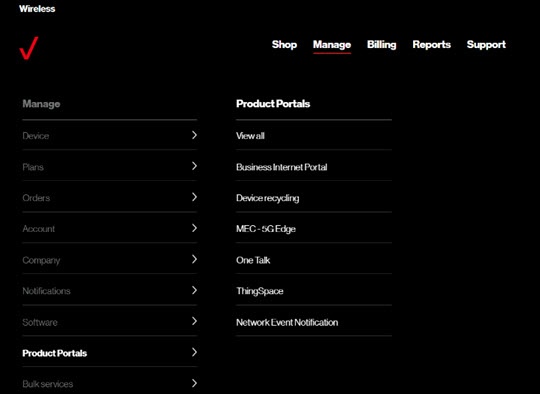
- ClickManage(top of screen).
- Mouse overProduct Portalsthen clickOne Talk.If necessary, clickView all.
- From the 'I want to' section, clickManage features.
- ClickGroup Forwarding.
- Click theEnable feature switchto turn on
.
- In the 'Forward to' box, enter the phone number to which you want to forward calls, or click 'Select a line from the list'.
- Select 'Always' or 'Select schedule'.If choosing 'Select Schedule', select the preferred option in the dropdown boxes.Currently a known issue exists when using a schedule; users may experience "always forward" behavior even when using a schedule for Group Forwarding.
- Select the One Talk lines from the list, or selectAdd Lines, select (check) the desired lines then clickSave.
- ClickSubmit(upper-right).