GizmoHub App - Use Step Counter
Here's how to use the step counter for your child's Gizmo via the GizmoHub App.
- Ensure the GizmoHub app is updated (Google Play™ Store or Apple® App Store® ).
- Check out the GizmoHub FAQ page for more info.
Add a step goal
- Open theGizmoHub app
.
If presented with the PIN screen, enter your PIN. - TapKids(lower-left).
- TapSteps.
- TapAdd a step goal.
- Tap theswitch(upper-right) to turn on
.
- Enter the number of steps per day.
- Tap theReceive a daily notification switchto turn on
off.
Configure time for notification by using the scrolling clock. - Enter a reward name for when your child reaches their step goal (e.g., Ice Cream).
- TapSave.
Edit a Step Goal
- Open theGizmoHub appIf presented with the PIN screen, enter your PIN.
- TapKids(lower-left).
- TapSteps.
- Tap theEdit icon
(upper-right).
- Make the desired changes then tapSave.
View Step History
- Open theGizmoHub appIf presented with the PIN screen, enter your PIN.
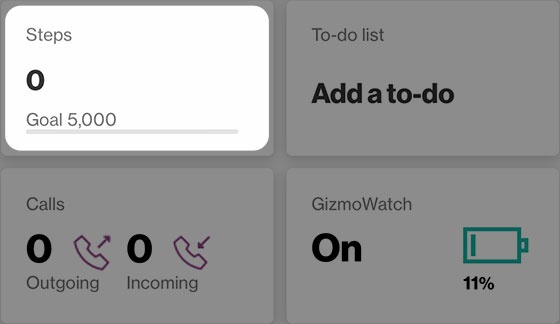
- Tap theSteps card.
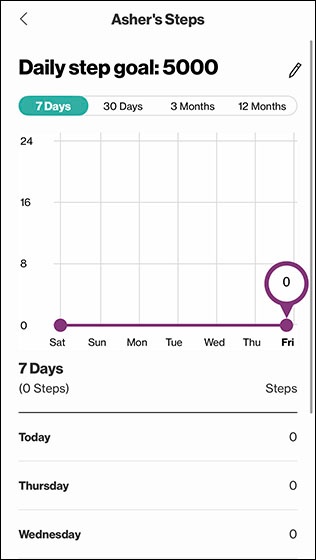
- Review the following info:
- Daily Step Goal
- Track goals for 7 days, 30 days, 3 months, etc.
Turn Off Step Counter
- Open theGizmoHub appIf presented with the PIN screen, enter your PIN.
- Tap theSteps card.
- Tap theEdit icon
- Tap theswitch(upper-right) to turn off
- TapSave.