GizmoWatch™ - Create and Send a Text Message
Here's how to create and send a text message on your GizmoWatch.
- The GizmoWatch can only text (preloaded message) or call contacts setup through the GizmoHub app by designated caregivers.
- In the caregiver's GizmoHub app, each message is displayed in a chat bubble (white for the caregiver and colored bubbles for the Gadget messages) and is timestamped.
Message
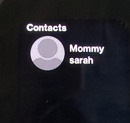
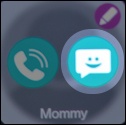
- Swipe left then tap the name of the contact you wish to message.To add a contact, refer to GizmoHub App - Add a Contact.
- From the menu screen, tap theMessaging icon
.
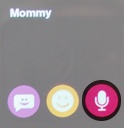
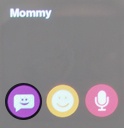
You can choose between sending an Emoticon, voice message, or quick message. - ChooseMessage.
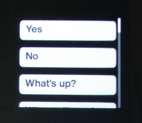
- Select a preloaded message by scrolling up or down then tap it to send.
Emoticon
- Swipe left then tap the name of the contact you wish to message.To add a contact, refer to GizmoHub App - Add a Contact.
- From the menu screen, tap theMessaging iconYou can choose between sending an Emoticon, voice message, or quick message.
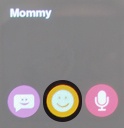
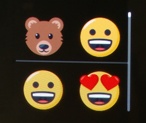
- ChooseEmoticon.
- Select a preloaded emoji by scrolling up or down then tap it to send.
Microphone
- Swipe left then tap the name of the contact you wish to message.To add a contact, refer to GizmoHub App - Add a Contact.
- From the menu screen, tap theMessaging iconYou can choose between sending an Emoticon, voice message, or quick message.
- ChooseMicrophone.
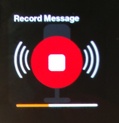
- Record a message.
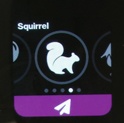
- When finished, swipe to the left to hear different sound effects for your message.
- Once the preferred voice is recorded, tap theSend icon.