GizmoWatch - Activate / Set Up Device
Here's how to set up your child's GizmoWatch using the GizmoHub app.
- Prior to activating your device, ensure:
- The companion smartphone is connected to a cellular or Wi-Fi network.
- All devices (Guardians, Caregivers, etc.) update the GizmoHub app (Google Play™ Store or Apple® App Store® ).
- The date and time settings on the parent device are set automatically.
- You don't have a data, text or Caller ID block on either the Gizmo device or the caregiver's smartphone.
- If you're activating a replacement GizmoWatch, delete the previous device.
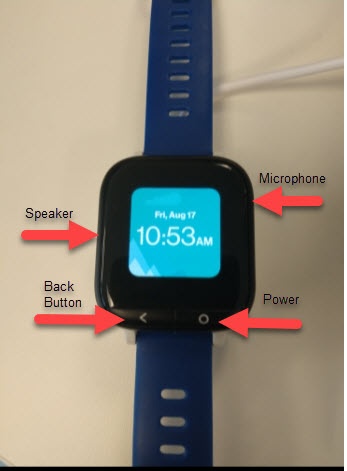
- Power the watch on by pressing thePower button.
- Open theGizmoHub app
on the companion smartphone.
If necessary, install the GizmoHub app via the Play Store or App Store. - Tap theCheckmark icon
on the watch.
- From the 'Let's Get Started!' screen, choose one of the following:
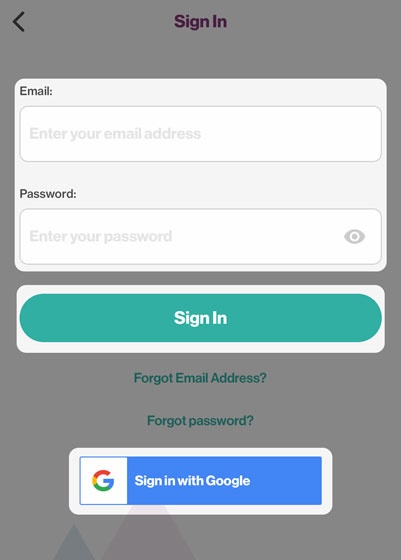
- Sign In
- Enter your email address and password, then tapSign In.To sign in with a Google™ account, tapSign in with Google.
- TapAdd Your Child's Infothen enter the required info (e.g., Name, Gender, Birth Month, etc.).If you're activating a replacement GizmoWatch, skip to step 8.
- TapAdd Child.
- TapAdd Gizmo.
- TapGet Started.If prompted, tapAllow.
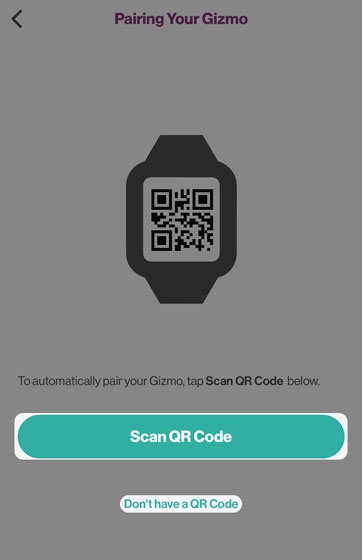
- Tap 'Scan QR Code' or tap 'Don't have a QR code' then follow the onscreen instructions.
- Tap theCheckmark icon
- From the 'Add... number to your contacts' screen tap one of the following:If prompted, tapOK.
- Yes, add to contacts
- Don't add to contacts
- From the 'Success!' screen, tapContinue.
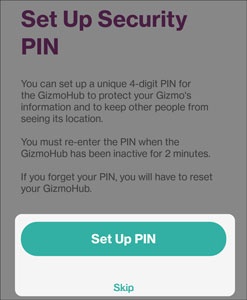
- TapSet Up PIN.If you don't want a Security PIN, tapSkip.
- Enter a security PIN, enter it again to confirm then tapSave.
- TapOK.
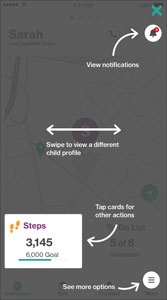
- Once the GizmoHub navigation screen appears, tapXto enter the app.