Apple iPhone - Manage RTT / TTY Settings
Here's how to manage RTT / TTY settings on your iPhone.
- Real-time text (RTT) is a feature on the Apple® iPhone® that allows for those with hearing or speech impairments to carry on a conversational text via a phone call.
- When RTT is enabled on both devices, no audio is heard on the call.
- If you don't hear audio on a call, tap theMicrophone icon
to enable simultaneous voice and text.
Set up RTT / TTY
- From a Home screen, navigate:.SettingsAccessibilityIf an app isn't available on your Home screen, swipe left to access the App Library.If unavailable, navigate: .
- From the HEARING section, tapRTT/TTY.
- Tap theSoftware RTT switchto turn on
.
If unavailable, tap the Software RTT/TTY switch to turn on. - When Software RTT is enabled:
- Tap theSend Immediately switchto turn on.This allows you to send characters as they are typed.
- Tap theAnswer All Calls as RTT/TTY switchto turn on then tapAnswer All Calls as RTT/TTYto confirm.Answering incoming calls as RTT/TTY will prevent all call audio from being heard during TTY calls.When enabled, you can add voice to the RTT call by pressing the microphone icon to enable simultaneous voice and text.
- Tap theHardware TTY switchto turn on or off.

Place and End an RTT / TTY Call
RTT / TTY has to be enabled for calls to be answered in RTT mode on a compatible device.
- Open thePhone app
.
- Select a contact or enter the 10-digit mobile number.
- Tap theCall icon
then tap 'RTT Call' or 'RTT Relay Call'.
If unavailable, tap 'RTT/TTY Call' or 'RTT/TTY Relay Call'. - When the call is connected, tap theRTT icon
.
- From the message field, type your message.
- When 'Send Immediately' is enabled in settings, the recipient sees the message as you type.
- If not, enter your message then tap thearrow up icon
to send.
- To end the RTT / TTY call:
- TapBack(upper-left).
- TapEnd call icon
.
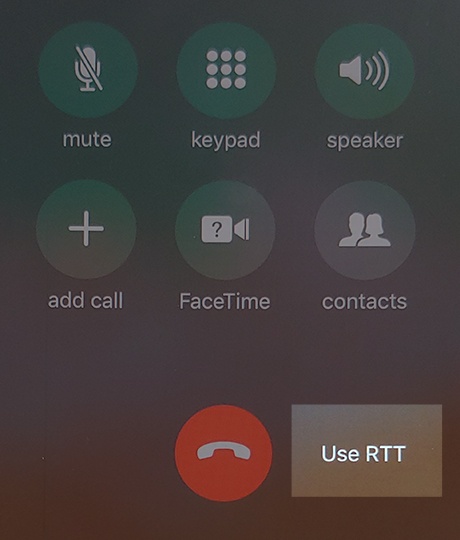
Upgrade a Voice Call to RTT / TTY
- Open thePhone app
- Select a contact or enter the 10-digit mobile number.
- Tap theCall icon
- TapUse RTT..When selected, the mute icon changes to the RTT icon
- TapRTTto open text conversation.
View Transcript
- Open thePhone app
- From the Recents tab, scroll to the preferred RTT / TTY call.
- TapInfo icon
(far right).
Tap the appropriate call time; there may be more than one. - To save a conversation, tap theDownload icon
(upper-right) then follow on-screen prompts.