One Talk Portal - Configure Busy Lamp Field (BLF)
Here is how to configure Busy Lamp Field (BLF) via the One Talk portal.
Refer to the One Talk admin portal simulator for interactive demonstrations.
- Sign in to My Business.
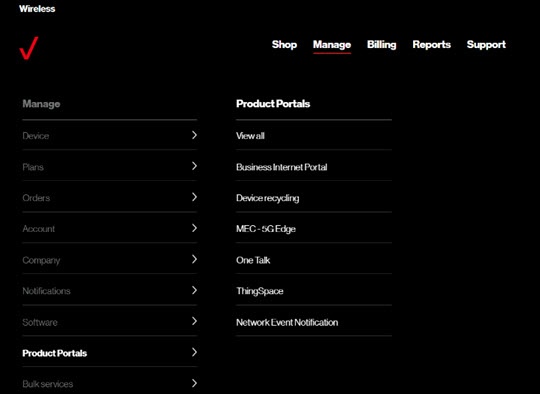
- ClickManage(top of screen).
- Mouse overProduct Portalsthen clickOne Talk.If necessary, clickView all.
- From the 'I want to' section, clickManage lines and devices.
- If necessary, select the desired group from the dropdown menu then click theDevices tab.
- Click the desired phone number in the left column.
- From the 'Associated devices' tab, clickView morefrom the desired section (Smart phone, Desk phone, Mobile client) then select the appropriate device.
- From the 'Busy lamp field' section, selectConfigure Line(s) to Monitor.
- Select (check) the appropriate lines then clickSave.
- To enable monitoring on the desk phone, from the 'Associated devices' tab, click theEnable monitoring switchto turn on
.
To see compatible equipment, clickSee phone model recommendations(left of the 'Configure Line(s) to Monitor' button).
Desk Phone - Line Status Indicators
- Once enabled, the desk phone needs to reboot to pick up the configuration change. The reboot is automatic.
- Once BLF is enabled, the desk phone displays line status for monitored lines using different light sequences on the line keys. Below is a description of the line status:Line Status - lights on line keyDetailGreenMonitored user is idleSteady RedMonitored user is on the phoneBlinking RedMonitored user has an incoming call
Desk Phone - Incoming Call Display
- Once BLF is enabled, the desk phone needs to reboot to pick up the configuration change. The reboot is automatic.
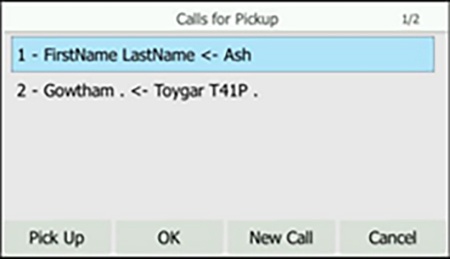
- When the monitored line receives an incoming call, the LED flashes on the desk phone as described above; additionally the user is presented with the following:
- Audio: There is also an audible single beep indicating a call on the monitored line.
- Visual indication: Visible on the idle screen and displays the monitored line and Caller ID for the caller.
- The admin monitoring the line has the option to answer the call on behalf of the intended end user. When answering a monitored line, the desk phone displays the FAC code and extension used for directed call pick up with barge-in.