Samsung Galaxy S9 / S9+ - Common Camera Settings
Here's info on common camera settings (e.g., flash, timer, front / rear camera, etc.) for your Galaxy S9 / S9+.
For additional camera settings, refer to the user guide.
Resolution
- From a Home screen, tapCamera
(lower-right).
If not available, swipe up or down from the center of the display then tapCamera. - For general camera settings, tap theSettings icon
(upper-left in portrait orientation).
- SelectResolution.
- Rear picture size:
- 4:3 (12 MP)
- 16.9 (9.1 MP)
- 18.5:9 (7.9 MP)
- 1:1 (9.1 MP)
- Front picture size
- 4:3 (8.0 MP)
- 16.9 (6.0 MP)
- 18.5:9 (5.2 MP)
- 1:1 (6.0 MP)
- Rear video size:
- 16.9
- FHD (1920x1080)
- 18.5:9 (2224x1080)
- 1:1 (1440x1440)
- Front video size:
- 16.9
- FHD (1920x1080)
- 18.5:9 (2224x1080)
- 1:1 (1440x1440)
Shooting Methods
- From a Home screen, tapCameraIf not available, swipe up or down from the center of the display then tapCamera.
- For general camera settings, tap theSettings icon
- SelectShooting Methods.
- Tap an option to turn on
or off
:
- Voice control
- Floating Shutter button
- Show palm
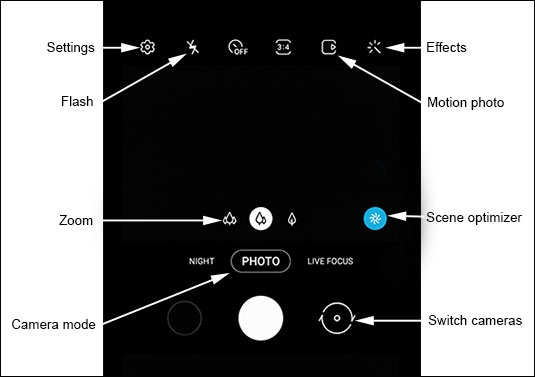
Flash
- From a Home screen, tapCameraIf not available, swipe up or down from the center of the display then tapCamera.
- Tap theFlash icon.
- Select an option:
- On
- Off
- Auto

Camera Effects
- From a Home screen, tapCameraIf not available, swipe up or down from the center of the display then tapCamera.
- Tap theMotion photo icon.
- Swipe left to choose a preset effect (e.g., Warm, Cool, Lolli, etc.).

Motion Photo
- From a Home screen, tapCameraIf not available, swipe up or down from the center of the display then tapCamera.
- Tap theMotion photo iconto capture a few seconds of action leading up to when the shutter button is released.

Zoom
- From a Home screen, tapCameraIf not available, swipe up or down from the center of the display then tapCamera.
- Tap theZoom iconthen move the slider left or right to zoom in or out.
Scene Optimizer
- From a Home screen, tapCameraIf not available, swipe up or down from the center of the display then tapCamera.
- Tap theScene Optimizer iconto automatically adjusts your shots for the current scenery.
Camera Mode
- From a Home screen, tapCameraIf not available, swipe up or down from the center of the display then tapCamera.
- To change the camera mode, swipe left or right to select an option:
- FoodOptimizes images taken of food
- NightMinimizes noise from dark environments to enhance the photo's details.
- PanoramaTap the Camera button then pan slowly in one direction.
- ProManually adjust the ISO sensitivity, exposure value, white balance, and color tone.
- Live focusBlur the background so your subject stands out in a picture.
- PhotoCapture a picture using your Galaxy S10 camera.
- VideoCapture a video using your Galaxy S10 camera.
- Live focus videoBlur the background so your subject stands out in a video.
- Super slow-moCaptures video in super slow motion.
- Slow motionCaptures video in slow motion.
- HyperlapseCreate time-lapse videos.
Switch Cameras
- From a Home screen, tapCameraIf not available, swipe up or down from the center of the display then tapCamera.
- Tap theCamera Facing iconto switch between rear and front-facing camera.
