One Talk Portal - Enable / Disable Hold Music
Here's how to enable or disable hold music via the One Talk portal.
Refer to the One Talk admin portal simulator for interactive demonstrations.
- Sign in to My Business.
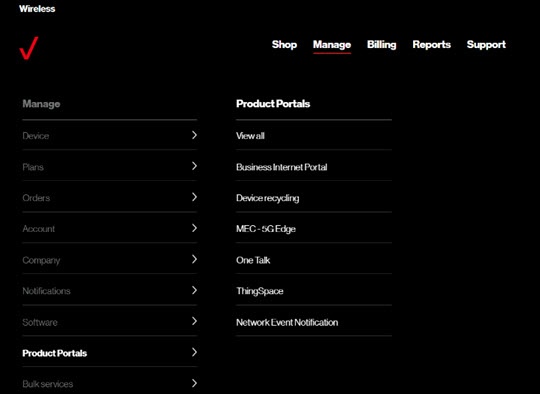
- ClickManage(top of screen).
- Mouse overProduct Portalsthen clickOne Talk.If necessary, clickView all.
- From the 'I want to' section, clickManage features.
- From the Business Features tab, clickMusic On Hold.
- Select one of the following options then clickSubmit:
- Off
- Play predefined music provided by Verizon
- Play custom music
Upload Custom Music
- To record your own music or announcement, we recommend downloading and using the Broadsoft Recorder (searchable under that name from the Apple® App or Google Play™ Store). The Broadsoft Recorder formats the recording for you, so it is simple to use.
- Alternatively, you can use other programs and applications such as G711.org to format existing Digital Rights Management (DRM) free audio files to the correct specifications.
- Sign in to My Business.
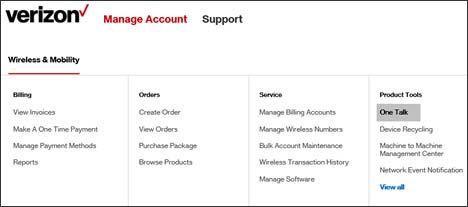
- ClickManage Account.
- From the Product Tools section, clickOne Talk.If necessary, clickView all.To navigate, mouse over each option.
- From the 'I want to' section, clickManage features.
- From the Business Features tab, clickMusic On Hold.
- From the 'Music On Hold' page, clickReplace Existing.
- ClickUploadthen select the appropriate music file from your computer.To use or record your own music or announcement, make sure the resulting audio file meets the following criteria:
- WAV file format
- CCITT, u-law, or a-law codec
- 8 kHz (sampling rate/frequency)
- 8 bit mono
- 5 MB or less total size (approximately 10 minutes of playback)
- ClickSubmit.