Apple iPhone - Use Emergency SOS
Here's how to use your iPhone to contact emergency services and alert your emergency contacts.
- Emergency SOS via satellite allows you to text emergency services from an Apple iPhone 14 model or higher when you're out of cellular and Wi-Fi coverage. Visit the Emergency SOS via satellite Support page for more info.
- The Emergency SOS feature on your Apple® iPhone® allows you to contact emergency services (e.g., 911) using a button combination.If your iPhone detects a severe car crash, your device can help connect you to emergency services. Visit the Crash Detection Support page for more info.
- You can also add emergency contacts to receive an alert with a text message after the emergency call is ended. Visit the Emergency SOS support page for more info.
iPhone 8 or Later
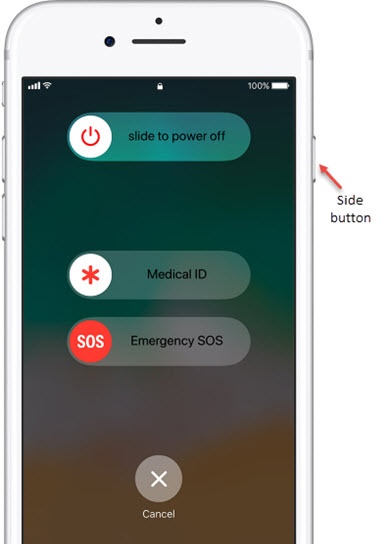
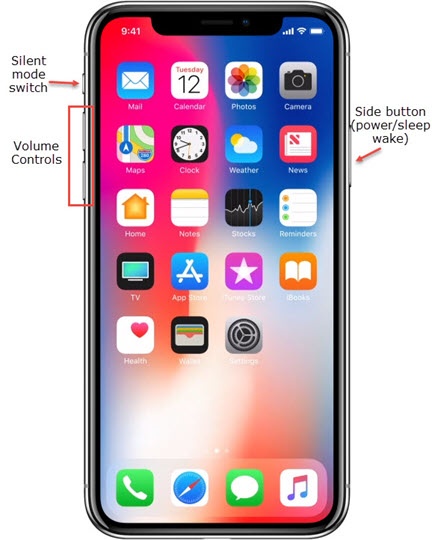
- Press and hold thePower buttonandVolume buttonuntil Emergency SOS slider appears.
- Drag theEmergency SOS sliderto the right to call emergency services.If you continue to press the Power and Volume buttons, instead of dragging the slider, a countdown begins and an alert sounds. If the buttons are still being pressed after countdown ends, your iPhone automatically calls emergency service.
- Once the call is ended, your iPhone sends your Emergency contacts a text message with your current location, unless prompted not too.If Location Services is off, it will temporarily turn on. If location changes, contacts receive and update on location.
iPhone 7 or Earlier
- Quickly press and release the 'Side' or 'Top'button5 times.
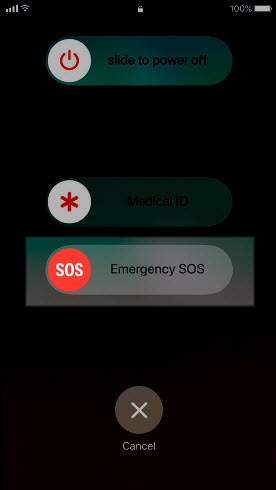
- Once the Power off / Emergency SOS screen appears, drag theEmergency SOS sliderto the right to call emergency services.
- Once the call is ended, your iPhone sends your Emergency contacts a text message with your current location, unless prompted not to.If Location Services is off, it will temporarily turn on. If the location changes, contacts receive an update on the location.