Apple iPhone - Restore from iCloud Backup
Here's how to restore content (e.g., Photos, Music, settings, etc.) to your iPhone from a backup on iCloud.
- Follow these steps to restore content from a previous iCloud® backup on your Apple® iPhone.®
- If your iPhone has previously completed setup, ensure backup has been completed then follow these instructions to erase all content.
- If this is an upgrade or your phone was not activated when purchased, refer to activate a new iPhone.
- Press thePower button(top-right edge) to power the iPhone on.
- Tap the screen to choose language then tap the country or region.
- TapSet Up Manually.If you have a previous device running iOS 11 or later, follow the directions to use Quick Start.
- Tap the Wi-Fi network, enter the Wi-Fi password then tapJoin.
- From the Data & Privacy screen, tapContinue.
- If prompted to set up Face or Touch ID tapContinue.
- Follow the onscreen prompts to complete the Touch or Face ID setup.
- Enter a passcode, then re-enter passcode to confirm.
- TapRestore from iCloud Backup.
- Enter your Apple ID to sign in to iCloud.If you forgot your password, follow these step-by-step instructions.
- To continue, review Terms and Conditions then tapAgree.
- From the 'Choose Backup' screen, choose which backup to restore.
- From the Keep Your iPhone Up to Date, tapContinue.
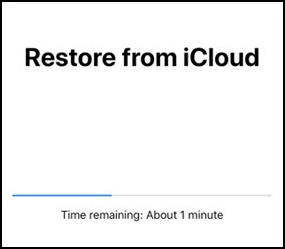
- If prompted, enter your Apple ID again to restore your previous purchases and apps.Ensure you maintain a data connection via Wi-Fi or cellular; if you disconnect from Wi-Fi, the transfer pauses until you are reconnected.Time to restore content depends on the amount of data being transferred.
- Follow on-screen prompts to complete the initial setup.