Apple Watch - Call a Number
Here's how to call a number from your Apple Watch.
The steps below apply to the Apple Watch® Series 3 and newer models.
- To place a call, do one of the following:
- Ask Siri
- Use an Existing Contact
- Manually Enter a Number
Ask Siri
- Raise the Apple Watch or tap the screen, then say "Hey, Siri."
- Say something like:
- "Call (contact name)"
- "Dial (speak the 10 digit number)"
- "Call (contact name) via FaceTime audio"
Use an Existing Contact
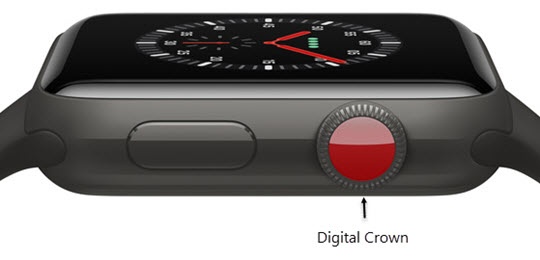
- From the Watch face screen, press theDigital Crownto access the Apps screen.
- Tap thePhone app.
- TapContacts.
- Tap the desired contact then tap theCall icon.Turn the Digital Crown to scroll.
- To place the call, tap the desired mobile number or tap FaceTime® Audio.To enter additional numbers (e.g., an extension) during a call, swipe up then tap theKeypad button.


Manually Enter a Number
- From the Watch face screen, press theDigital Crownto access the Apps screen.
- Tap thePhone app.
- Tap theKeypad icon
.
- Enter a 10-digit number then tap theCall icon.To enter additional numbers (e.g., an extension) during a call, swipe up then tap the Keypad button.