Kyocera DuraXV LTE - Manage Mobile / Wi-Fi Hotspot Settings
To configure Manage Mobile / Wi-Fi Hotspot Settings (e.g., password, allowed devices, etc.) on your DuraXV LTE, view this info.
To configure Manage Mobile / Wi-Fi Hotspot Settings (e.g., password, allowed devices, etc.), view this info.
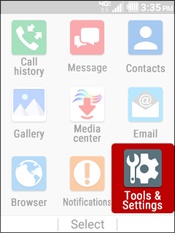
- From the main screen, selectMenu.Utilize the 5-way navigation pad to highlight and the center button to select.
- SelectTools & Settings.
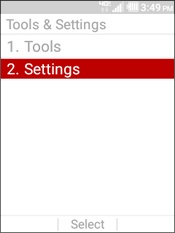
- SelectSettings.
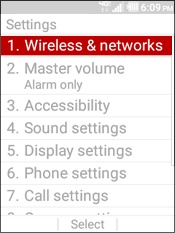
- SelectWireless & Networks.
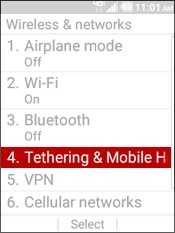
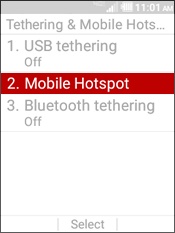
- SelectTethering and Mobile Hotspot.
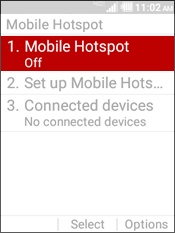
- SelectMobile Hotspot.
- SelectMobile Hotspotagain.
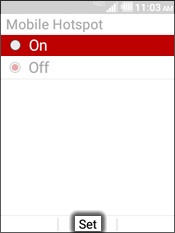
- HighlightOnthen selectSetto turn on the mobile hotspot.
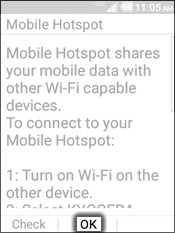
- If prompted, read the info about the mobile hotspot then selectOK.
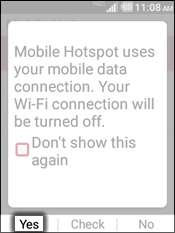
- If prompted, read the info about the mobile hotspot using data service then press theLeft Soft Keyto choose Yes.
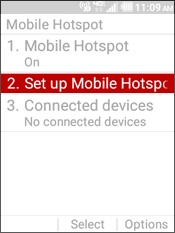
- SelectSetup Mobile Hotspot.
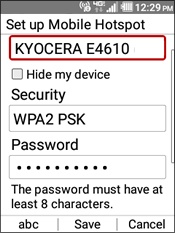
- From the Setup Mobile Hotspot screen, configure the following as needed:
- Network Name
- Enter a network name.To hide your connection from other devices, navigate to Hide my device then pressLeft Soft Keyto choose Set.
- Security
- Highlight theSecurity fieldthen press theLeft Soft Keyto choose Set.
- Highlight an option then selectSet:
- WPA2 PSK
- Open
- Password
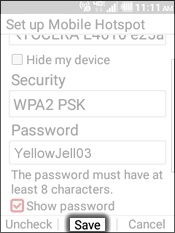
- If preferred, highlightShow passwordthen press theLeft Soft Keyto choose Check.Show password is selected when a check mark is present.
- Select thePassword Fieldthen enter the new password.Password must be at least 8 characters, see example image below.The new password must be entered on the connecting device.
- SelectSave.
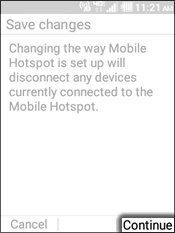
- Press theRight Soft Keyto choose Continue.