One Talk Portal - Set Up Bridging
Here's how to set up call bridging via the One Talk portal.
Refer to the One Talk admin portal simulator for interactive demonstrations.
- Barge-in to a conversation to communicate with the participants of an active conversation (Barge-in Exempt can be turned on if needed for security reasons).
- A user's mobile phone with the One Talk dialer or One Talk App can also be bridged to a desk phone, enabling the lines of mobile-only users to be monitored.
- Devices:
- Only the T41, T46 and T49 can be used as the bridging source.
- The T41 allows bridging up to 5 other One Talk lines (regardless of the device type).
- The T46 and T49 allows to bridge up to 11 other One Talk lines (regardless of the device type).
- One Talk lines can have a maximum of 2 desk phones. When bridging, the admin desk phone becomes part of the lines it bridges out to. You can't bridge out to a One Talk line that already has 2 desk phone endpoints on it.
- Sign in to My Business.
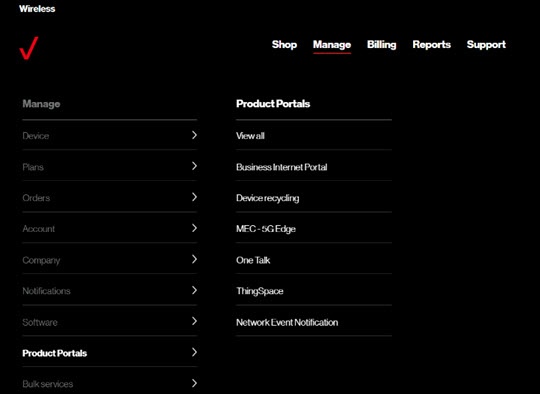
- ClickManage(top of screen).
- Mouse overProduct Portalsthen clickOne Talk.If necessary, clickView all.
- From the 'I want to' section, clickManage lines and devices.
- If necessary, select the desired group from the dropdown menu then click theDevices tab.
- Click the desired phone number in the left column.
- From the 'Associated devices' tab, clickView morein the 'Desk phone' section.
- ClickAdd line.
- Select the number to be bridged then clickSave.