Kyocera DuraXV LTE - Add a Contact
Here's how to add a contact on your DuraXV LTE.
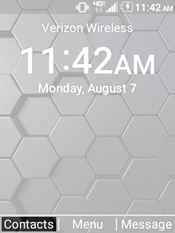
- From the main screen, press theleft soft keyto choose Contacts.
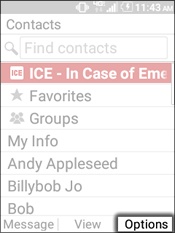
- Press theright soft keyto choose Options.
- SelectAdd new contact.Utilize the 5-way navigation pad to highlight and the center button to select.
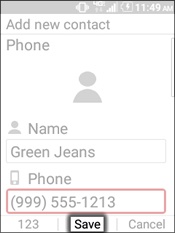
- Enter info into any of the following fields then selectSave(located at the bottom):
- Contact photoTo add a picture;
- Select theContact Picture iconthen press theLeft Soft Key
to choose Set.
- Select an option.
- Take photo
- Aim then selectTaketo capture the picture.
- Adjust the picture as desired (Zoom in or out) then selectDone.
- Choose photo
- Navigate to then select a picture.
- Adjust the picture as desired (Zoom in or out) then selectDone.
- Name
- Phone
- MobileTo add a pause or wait, press theLeft Soft KeySymbolsthen selectPauseorWait.
- Work
- Home
- Home Fax
- Other
- Email
- Work Email
- Other Email
- Phone RingtoneTo add a ringtone, press theLeft Soft KeySet.
- Message RingtoneTo add a ringtone, press theLeft Soft KeySet.
- Vibration PatternTo add a vibration pattern, press theLeft Soft KeyOK.