Arlo Go - Activate / Set Up Device
Here's how to activate and set up your Arlo Go camera.
To set up your camera, you need:
- an active SIM card inserted into the camera.A SIM card is typically pre-installed.
- access to a computer or smartphone with Internet access.For smartphones, the Arlo app is required and available via the Google Play and Apple App stores. Smartphone requirements are:
- iOS 8 or later
- Android 4.1 or later
For computers, supported browers are:- Internet Explorer 10 or later
- Microsoft Edge
- Firefox 3.5 or later
- Safari 3 or later
- Chrome (latest version)
- Insert the battery.Installing the battery is recommended even if the camera is connected to a power source.
- Launch the Arlo app on your smartphone or navigate to the admin site via a browser.The website URL is: https://arlo.netgear.com/
- Do one of the following:
- If setting up a new Arlo account, tap or clickNew to Arlo.
- If you already have an Arlo account, enter your credentials to log in then tap or clickAdd Device.
- Tap or clickArlo Go.
- To confirm SIM activation, tap or clickContinue(at the bottom).
- From the APN Info screen, tap or clickSkip This Step(at the bottom).
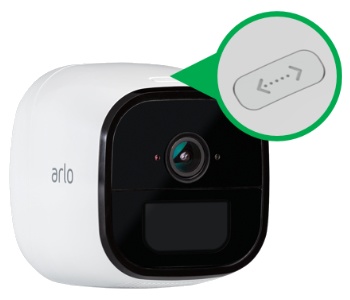
- Press and hold the Sync button (on the top edge) for 2 seconds then release.
- From the How To Sync screen, tap or clickContinue.
- Aim your camera lens 4 to 8 inches in front of the QR code displayed on screen until a chime is heard.
- If you heard the chime sound, tap or clickYes, I heard a chime.Allow several seconds for the app or website to discover your camera and display the Claim Your Device screen.If the chime sound wasn't heard, tap or clickBackthen repeat steps 7 through 10.
- From the Claim Your Device screen, enter the location, desired camera name and time zone then tap or clickNext.
- Enter your account settings then tap or clickNext.
- From the Select a Plan screen, choose the desired service plan.Refer to Arlo for additional assistance.