Digital Secure App (Android) - Configure General Settings
Here's how to adjust settings (e.g., web security, Wi-Fi security, etc.) for the Digital Secure app.
Increasing the frequency of scans and updates when using the Digital Secure app on your Android™ device may decrease battery life and increase data usage. The app checks for updates as configured in settings (e.g., daily, weekly, etc.).
Wi-Fi Scan
- Open the Digital Secure app on your phone.
- Tap theSettings icon
(bottom right).
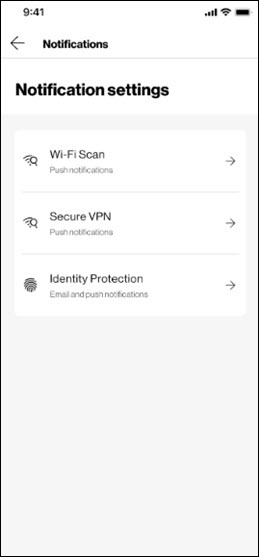
- From the 'General Settings' section, tapNotifications.
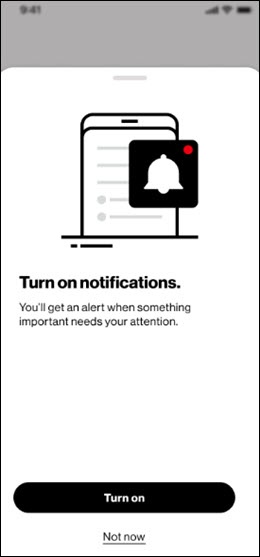
- If prompted, from the 'Turn on notifications' screen, tapTurn on.
- TapWi-Fi Scan.
- Tap theEnable push notifications on this device switchto turn on
or off
.
- From the 'You'll be notified when' section, tap (check) the following to enable notifications:
- When you're on unsafe network
- When your network is under attack
- When your on a safe network
Secure VPN
- Open the Digital Secure app on your phone.
- Tap theSettings icon
- From the 'General Settings' section, tapNotifications.
- If prompted, from the 'Turn on notifications' screen, tapTurn on.
- TapSecure VPN.
- Tap theVPN notifications switchto turn onWhen on, Digital Secure will inform you when the Wi-Fi network you are using has weak security.
Identity Protection
- Open the Digital Secure app on your phone.
- Tap theSettings icon
- From the 'General Settings' section, tapNotifications.
- If prompted, from the 'Turn on notifications' screen, tapTurn on.
- TapIdentity Protection.
- Tap the following switch(es) to turn on
- Enable email notifications on this device
- Enable push notifications on this device