One Talk T41S/SW, T42S, T42U IP Desk Phones - Set Up Wi-Fi
Here's how to set up Wi-Fi on your One Talk T41S/SW or T42 series IP Desk Phones.
- The WF50 USB Wi-Fi adapter:
- is included with the T41SW model and sold separately for T41S and T42S models.
- supports connecting to 2.4 GHz and 5 GHz Wi-Fi networks.
- is not compatible with previous One Talk desk phone models.
- The WF40 USB Wi-Fi adapter can also be used with these desk phone models.
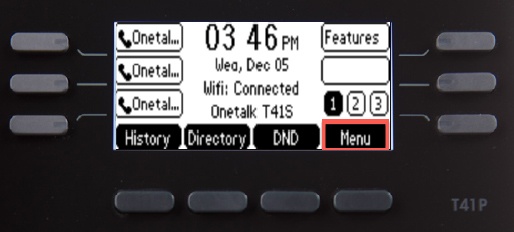
- From the Home screen, press theMenu soft key.
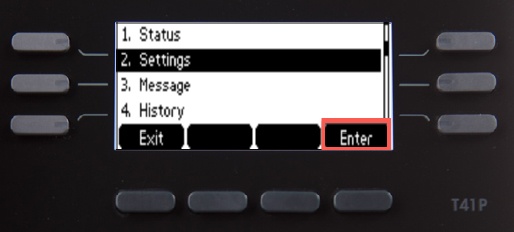
- Using the navigation keys, selectSettingsthen pressOK.
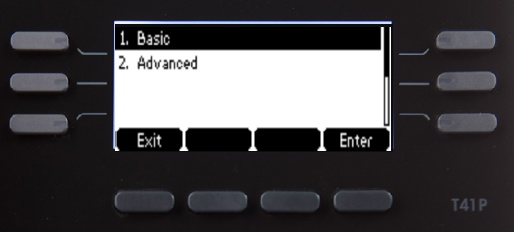
- SelectBasic.
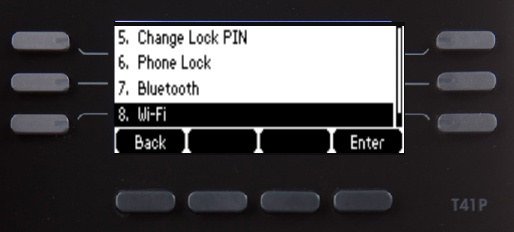
- Scroll to Wi-Fi then press theEnter soft key.
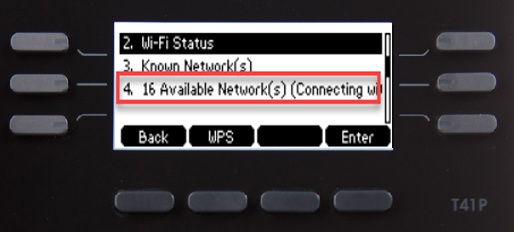
- Press theSwitch soft keyto turn Wi-Fi on then press theSave soft key.Ensure the Wi-Fi adapter is inserted into the USB port on the back of the phone.The phone automatically searches for available networks.If no networks appear, press theScan soft key.
- Press thedown arrowto see available networks.
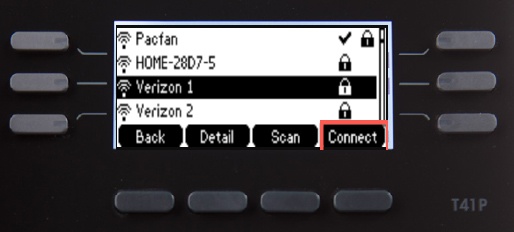
- Using the up and down arrows, select the preferred network then press theConnect soft key.
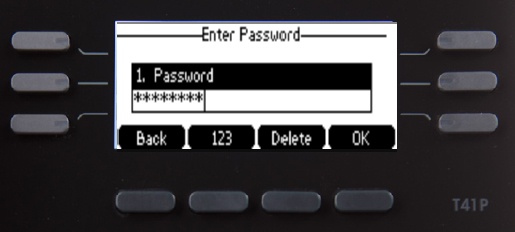
- If prompted, enter the Wi-Fi password then pressOK.You can change the key entry type, e.g., abc, ABC, 123 by pressing the second soft key from the left, under the screen.To enter special characters, select 'abc' entry mode then use the * key to cycle through available special characters.