Add a Contact via Visual Voicemail - Google Pixel Phones
Here's how to add a contact on your device via Visual Voicemail.
Visual Voicemail isn't available for Prepaid service.
- From a Home screen tapPhone
.
If unavailable, touch and swipe up to display all apps, then tapPhone. - TapVoicemail(lower-right).
- If prompted, tapTurn on.
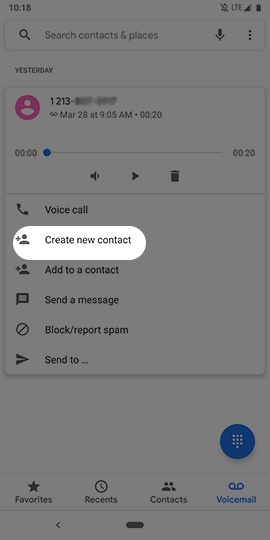
- From the Visual Voicemail inbox, tap a message to open it.
- Tap 'Create new contact'.
- Edit any of the info (e.g. name, phone, address, etc.) then tapSave(upper-right).Depending upon the account type, the options presented may vary.To add a pause (a 2-second delay between numbers) or wait, tap*#, tapPause (,)orWait (;)then tapSave.To change the type of a selection (e.g., Phone, Address, Date, etc.) tap theDropdown menulocated to the right of the selection then select the desired choice (e.g., Mobile, Work, Birthday, etc.).