Windows 10 - Set Up a Metered Connection
Here's how to limit the data used by your device connected to a PC running Windows 10.
If you want to limit the data used by your device connected to a PC running Windows® 10, view this info.
- A metered connection allows you to control the amount of data used on a connection with a data limit. Cellular devices are metered by default.
- For more info, refer to metered connections in Windows 10.
- From the Windows desktop, navigate:StartSettings iconUtilize the touchscreen (if available) or mouse to select the on-screen options.
- From the left pane, selectWi-Fi.
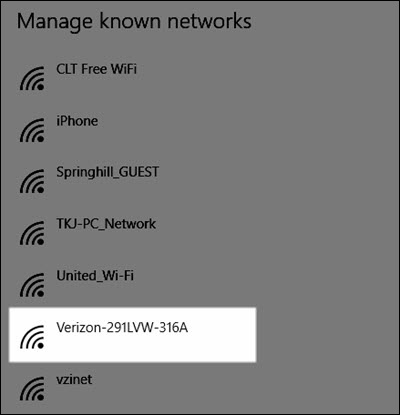
- From the Wi-Fi section, selectManage known networks.
- Select the desired wireless network connection.
- SelectProperties.
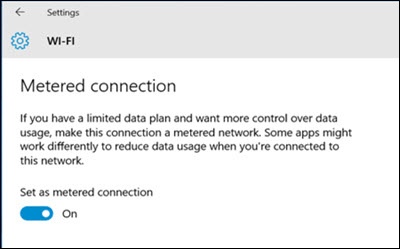
- Select theSet as metered connection switchto turn on
or off
.