Apple iPhone - Upgrade iCloud Storage Space
Here's how to add more storage space in iCloud.
For more info, view these recommended system requirements for iCloud®.
- From a Home screen on your Apple® iPhone®, tapSettings
.
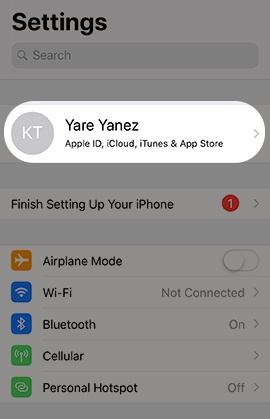
If unavailable, swipe left to access the App Library. - Tap yourApple profileat the top of the Settings menu.If prompted, enter the Apple ID and password then tapNext.
- TapiCloud.
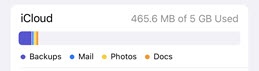
- Review the iCloud usage graph.
- TapManage Account Storage.Apple iCloud provides 5GB of free storage.
- TapChange Storage Plan.If unavailable, tapUpgrade.
- Select the upgrade option (e.g., 50GB, 2TB, etc.).Selected when a checkmark is present.
- TapUpgrade to iCloud+(upper-right).If unavailable, tapBuy(upper-right).If prompted, sign in to the iTunes Store to complete the purchase.
- TapContinue.
- Verify payment info then tapDone(upper-right).
- Some features / services require a Wi-Fi connection, aren't available in all countries and access is limited to 10 devices.
- For additional info, refer to Manage your iCloud storage.