Apple iPhone - Check for Duplicate Contacts Stored in Multiple Accounts
Here's how to find and prevent duplicate contacts from being stored in various accounts (e.g., iCloud, Facebook, Google, etc.) on your iPhone.
If you have duplicate contacts displayed in the Contacts app on your Apple® iPhone®, choose an app used to back up your contacts then turn the backup setting off for other apps.
iCloud
- From a Home screen, tapSettings
.
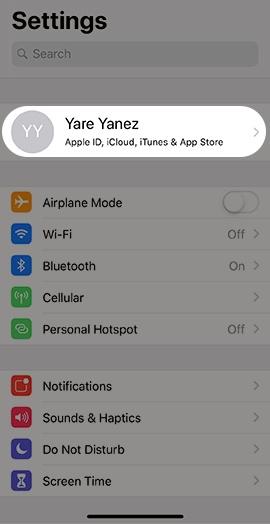
If an app isn't available on your Home screen, swipe left to access the App Library. - Tap yourApple profile(e.g., Joe Smith) at the top of the Settings menu.If prompted, enter your Apple ID and Password then tapSign In.
- TapiCloud.
- Tap theContacts switchto turn on
or off
.
If the option isn't available, tap 'Show All'.If already syncing with Verizon Cloud, turn off to avoid duplicates.
Facebook
- Tap theFacebook app iconto open.
- Tap theMore iconin the lower-right of the screen then tapFriends.
- TapContactsand verify that "Continuous Contacts Upload" is turned off.
Google
- From a Home screen, navigate:.SettingsMailIf an app isn't available on your Home screen, swipe left to access the App Library.If unavailable, navigate: .
- TapAccounts.
- TapGmail.
- Tap theContacts switchto turn onIf already syncing with Verizon Cloud, turn off to avoid duplicates.
