One Talk Portal - Add / Remove Devices (Endpoint)
Here's how to add or remove devices (endpoints) via the One Talk portal.
Refer to the One Talk admin portal simulator for interactive demonstrations.
- Sign in to My Business.
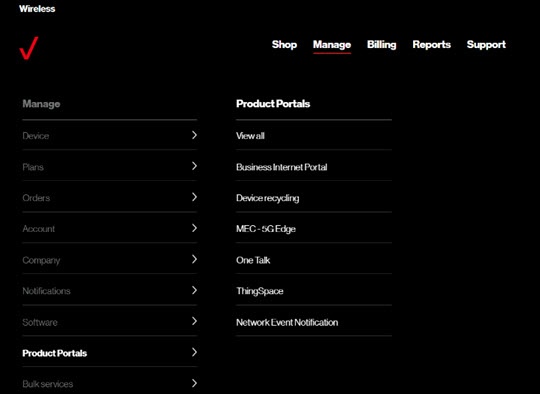
- ClickManage(top of screen).
- Mouse overProduct Portalsthen clickOne Talk.If necessary, clickView all.
- From the 'I want to' section, clickManage lines and devices.
- If necessary, select the desired group from the dropdown menu then click theDevices tab.
- Click the desired phone number in the left column.
- Do one of the following:
- To add a One Talk endpoint:
- From the 'Associated devices' tab, clickAdd device.
- Select 'Activate existing' or 'Purchase new'.
- Follow the on-screen instructions to complete the order then clickSubmit.
- To remove a One Talk endpoint:
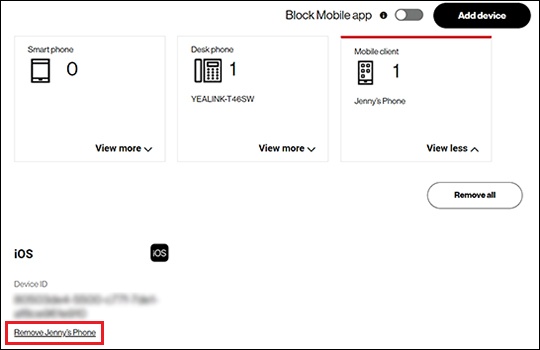
- ClickView moreon the card for the device you want to remove.
- ClickRemove [device name](lower-left, below Device ID).To remove all endpoints, clickRemove all.
- ClickRemoveon the pop-up screen to confirm.