One Talk Portal - Update Calling ID Name
Here's how to update calling ID name via the One Talk Portal.
Refer to the One Talk admin portal simulator for interactive demonstrations.
Customers are not able to make outbound calls when special characters (e.g., '&' or '-') are used in the Calling ID Name field.
- Sign in to My Business.
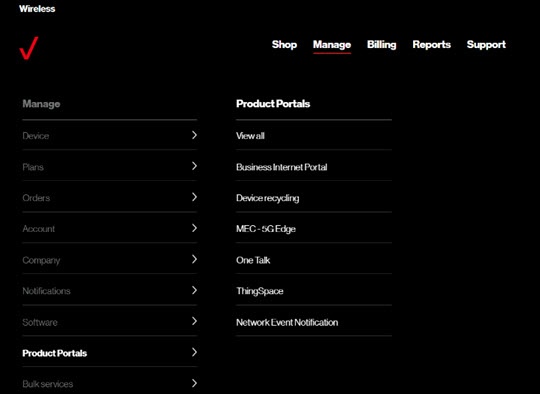
- ClickManage(top of screen).
- Mouse overProduct Portalsthen clickOne Talk.If necessary, clickView all.
- From the 'I want to' section, clickManage lines and devices.
- If necessary, select the desired group from the dropdown menu then click theDevices tab.
- Click the desired phone number in the left column.
- ClickEdit.
- Enter the desired name in the 'Calling ID Name' field then clickSubmit.