One Talk - Place a Call
Here's how to place a call from your One Talk phone.
- If placing a call over Wi-Fi, keep in mind that for billing purposes, Wi-Fi calls always originate in the US, even when you're outside of the US.
- Wi-Fi calls to US numbers are not billed (except for 411 or other premium calls).
- Wi-Fi calls to international numbers are billed according to your international long distance plan.
- N11 calls including 211, 311, 411, 511 and 811 are not supported in call-through mode. In these cases, the phone's native dialer should be used.
Select a dialer option for instructions on placing a call:
- Call from Desk Phone
- Call from Mobile App / Enhanced Dialer
- Call from Mobile App - Call-Through Mode
- Call from iOS Basic Dialer
- Call from Android Basic Dialer
Call from Desk Phone
- Enter the desired 10-digit number.Do not prefix the dialed number with a 9 as is currently required with a traditional PBX (Private Branch Exchange) system. If a 9 is accidentally added, the call fails and the caller receives an error recording.
- Press theSend button.
Call from Mobile App / Enhanced Dialer - App Calling
Click here for a list of supported devices.
- Open the One Talk app / Enhanced Dialer.
- Tap theCall button.
- From the Keypad tab, enter the desired 10-digit number.Do not prefix the dialed number with a 9 as is currently required with a traditional PBX (Private Branch Exchange) system. If a 9 is accidentally added, the call fails and the caller receives an error recording.
- Tap theCall button
.

Call from Mobile App - Call-Through Mode
Click here for a list of supported devices.
- Open the One Talk app.
- Tap theCall button.
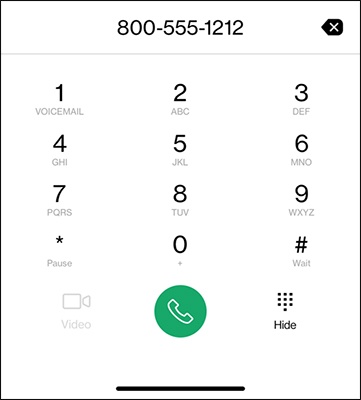
- From the Keypad tab, enter the desired 10-digit number.Do not prefix the dialed number with a 9 as is currently required with a traditional PBX (Private Branch Exchange) system. If a 9 is accidentally added, the call fails and the caller receives an error recording.
- Tap theCall button
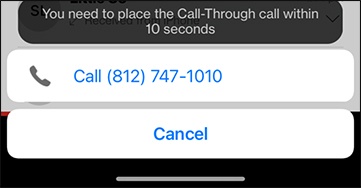
- A prompt displays asking you for confirmation to dial an interim number via your phone's native dialer. Tap the'Call (###) ###-####' buttonwithin 10 seconds of the prompt appearing.The number on the confirmation prompt doesn't replace the party you're trying to dial, but rather is an interim number used to help route the call. The called party will see your One Talk number and not the mobile number of the phone from which you're calling.
- The native phone dialer displays and the call to the interim number is placed. If necessary, return to the One Talk app during the call to perform call management functions.
Call from iOS Basic Dialer
- TapKeypad.
- Enter the appropriate number.
- TapCall.
Call from Android Basic Dialer
- TapPhone icon
.
- Enter the desired 10-digit number.
- TapCall.