One Talk - Transfer a Call (Direct)
Here's how to transfer a call with One Talk.
See Native Dialer Call / Feature Codes for info on available dialer codes.
Direct Transfer from Enhanced Dialer and Mobile App
Click here for a list of supported devices.
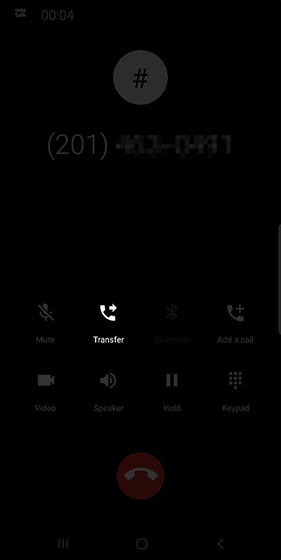
- From the Mobile device, tapTransferduring an active call.The call is placed on hold.
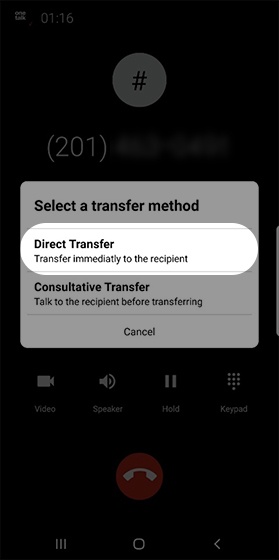
- SelectDirect Transfer.
- Select a contact from the phone's contact list or enter a phone number then tap theCall iconto complete the transfer.
Direct Transfer from Desk Phone
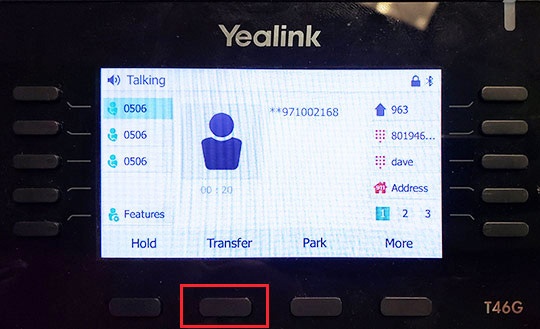
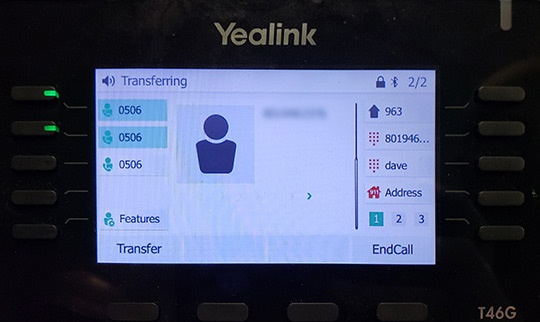
- From the desk phone, press the Transfer button
or the Transfer soft key during an active call.
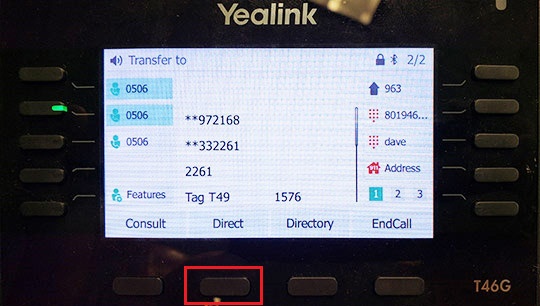
The call is placed on hold. - Enter the desired number or select a contact.For the T53W, T54W and T57W, enter the desired extension, 10 digit number or select a contact.
- Press the Transfer button
- The call is transferred.
One Talk DECT IP Cordless Phone - W56HV Handset (W60 Desk Phone)
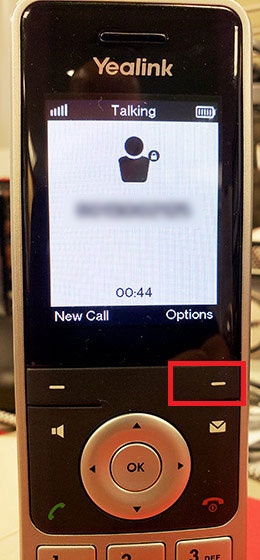
- From the main screen, press the Options soft key or the TRAN button (at the lower-left corner of the keypad).
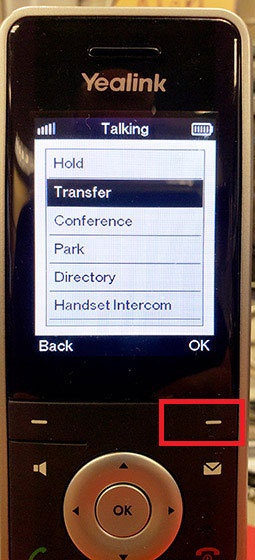
- SelectTransferthen press theOK soft key.The call is placed on hold.
- Enter the desired number or select a contact in the handset address book.You can also select other W56HV Handset models sharing the same phone number (e.g., transfer from Handset 1 to Handset 2).
- Press theOptions soft key.
- SelectDirectfrom the menu then press theOK soft key.
- Press theTransfer soft keyto transfer the call.
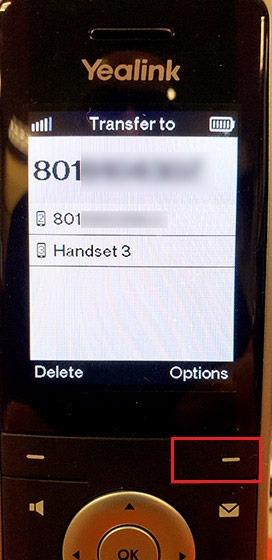
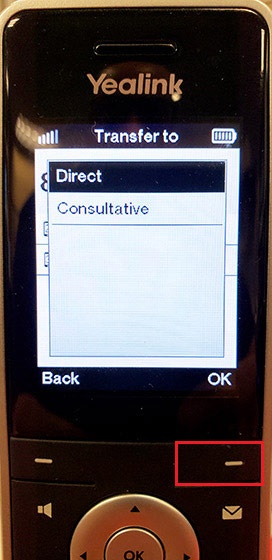
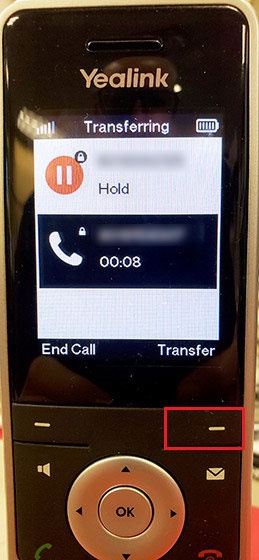
You can also select other W56HV Handset models sharing the same phone number and transfer between them (e.g., Transfer from Handset 1 to Handset 2).