One Talk - Move a Call
Desk Phone to Mobile App
Click here for a list of supported devices.
- From the desk phone, press theHold soft keyduring a call.For the One Talk DECT IP Cordless Phone select .Utilize the 5-way navigation pad to highlight and the center button to select.
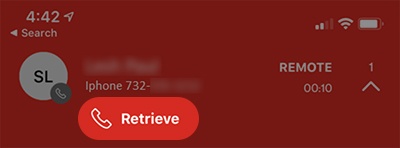
- From the mobile device, tap theActive Call Info barat the top of the screen to continue the call.
- Tap theDown arrow icon
to expand the menu.
- TapRetrieveto pick up the active call.On the desk phone, the line key shows a flashing red light while the caller is on hold.

Desk Phone to iOS Native Dialer
- From the desk phone, pressHold soft key buttonduring a call.For the One Talk DECT IP Cordless Phone select .Utilize the 5-way navigation pad to highlight and the center button to select.
- From the mobile device, tap thePhoneicon.
- Tap theKeypadicon.
- From the mobile device, enter**11to continue the call.
Mobile App / Enhanced Dialer to Desk Phone
- From the mobile device, tapHoldduring a call.
- Pick up the handset and press theLine key buttonon the desk phone to continue the call.On the desk phone, the line key shows a flashing red light while the caller is on hold.For the One Talk DECT IP Cordless Phone select theLine(right soft key) then select the line on hold to continue the call.
iOS Native Dialer to Desk Phone
- From the mobile device, tap and holdMUTEfor 5 sec during a call to place the call on hold.
- Pick up the handset then press theLine key buttonon the desk phone to continue the call.On the desk phone, the line key shows a flashing red light while the caller is on hold.For the One Talk DECT IP Cordless Phone, select theLine(right soft key) then select the line on hold to continue the call.
'Move Call' is not available from the Android™ native dialer.