One Talk Portal - View / Update Schedule
Here's how to view or update call routing schedules via the One Talk Portal.
Refer to the One Talk admin portal simulator for interactive demonstrations.
- If a schedule is used by any feature (e.g., Group Call Forwarding, Simultaneous Ring, Selective Call Forwarding, etc.), it can't be changed or deleted. Available options include:
- Build a brand new schedule with the desired changes.
- Remove the schedule from all users then modify or delete it.
It's generally easier to build a new schedule and then apply it to the features. - Any hours not included in the business schedule default to the configuration for after hours.
- Holiday schedules can only be created in all-day increments and take effect for the entire day(s) scheduled or by the hour block for only the 24 hours of that calendar day.
- Sign in to My Business.
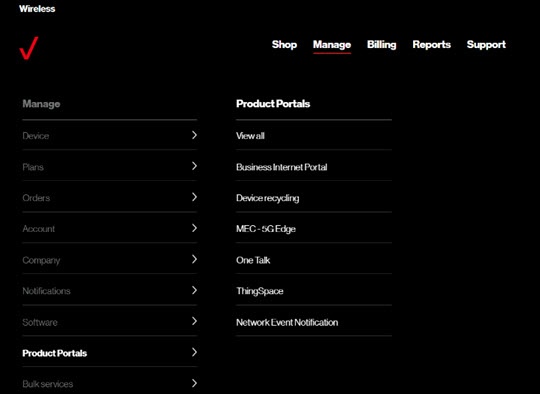
- ClickManage(top of screen).
- Mouse overProduct Portalsthen clickOne Talk.If necessary, clickView all.
- From the 'I want to' section, clickManage schedules.
- From the 'Schedule name' column, click the desired schedule to view it.
- To update a schedule, follow the on-screen instructions to complete the desired transaction then clickSubmit.Schedules must be created for the hours you wish call routing to follow (e.g., route calls via Selective Call Forward from 6 pm to 8 am, etc.).