One Talk Portal - Manage User Features
Here's how to manage user features (Anonymous Call Rejection, Call Waiting, etc.) via the One Talk portal.
Refer to the One Talk admin portal simulator for interactive demonstrations.
- These features are applied to individual users in your business, customizing their service to best meet their communication needs.
- For special user features, see below.
- Sign in to My Business.
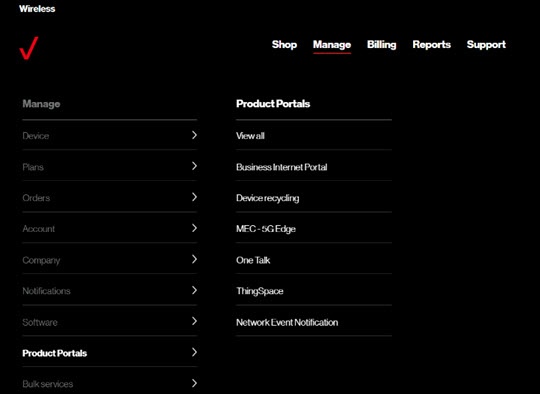
- ClickManage(top of screen).
- Mouse overProduct Portalsthen clickOne Talk.If necessary, clickView all.
- From the 'I want to' section, clickManage features.
- Click theUser Features tab.
- Select the desired feature, choose the appropriate phone number then click the feature switch (Call Forward types, Simultaneous Ring Service, etc.) to turn on
or off
.
- Follow the on-screen instructions to complete the desired transaction.
Special User Features
Feature | Description | Compatible with Business Features |
6-Way Call | Expands a voice call to include up to six participants without dialing into a conference bridge. | N/A |
Bridging | Allows multiple telephone lines (MTNs) among users in the business to be visible on any user's desk phone. Commonly used for receptionists or business associates to cover incoming calls for each other. A user's mobile phone with the One Talk dialer or One Talk App can also be bridged to a desk phone, enabling the lines of mobile-only users to be monitored. A desk phone user is able to bridge their desk phone to eleven other lines (MTNs) in the business enabling three functions:
| Compatible with Automated Receptionist (AR) and Hunt Group (HG) calls coming into the lines. Bridging is a use case of an Administrator needing to watch over their boss's lines. Another good use case is to have one desk phone look at other OTT client lines with no desk phones, this allows someone at the office to see who in the field is on a call. |
Call Barge |
| Works with Business Feature call routing. |
Call Move | In-progress calls can be quickly moved between devices, so there is no disruption in calls as the employee moves location. | N/A |
Line Sharing | Allows the use of a phone line(MTN) on up to eight devices per user in the following combination: 1 smartphone, up to 2 desk phones and up to 5 One Talk Mobile App. All devices sharing the line are able to place/receive phone calls, but are limited to three simultaneous calls among all of the devices (see the Multiple Line Appearances feature). | Compatible with AR and HG and work. |
Mobile Call Management | Provides multiple ways to use the One Talk service to answer calls when the user is mobile and not available in the office. The user can set Call Forwarding to automatically send mobile calls to another number, or enable his mobile line (MTN) to be Bridged to another person in the business, allowing someone else in the business to answer calls for him. | N/A |
Multiple Line Appearances | The user can place/receive up to 3 simultaneous calls from either a single device, or any of the devices in the Line Sharing arrangement. The calls can be placed individually or simultaneously from One Talk devices. Desk phones show the line appearances on 3 devices on the top left near the phone display. The One Talk Dialer and App will show the 3-line appearances as they are used. | N/A |
Simultaneous Ring | All of the user's devices sharing the same number ring during an incoming call. | Works with Business Features; however this is not designed to work with AR or HG. If enabled and being used with a Business Feature call looping can occur. Simultaneous Ring turned on with multiple One Talk lines will also create call loop. Calling party hears dead air or a disconnect recording. |