Windows 10 - How to Manually Connect to a Wi-Fi Network
Learn how to add a Wi-Fi network to your Windows 10 device if the one you want doesn't display. Follow these instructions from Verizon and get connected.
If your device isn't running Windows® 10, refer to the Windows 11 instructions.
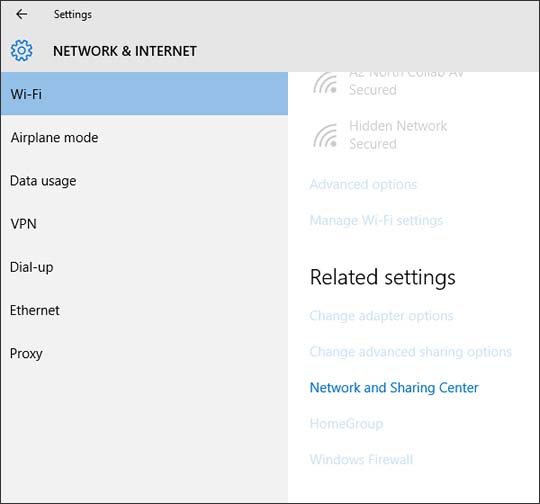
- From the Windows desktop, navigate:.StartSettings iconWi-Fi
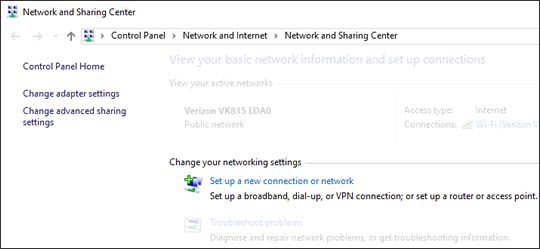
- From the Related settings section, selectNetwork and Sharing Center.
- SelectSet up a new connection or network.
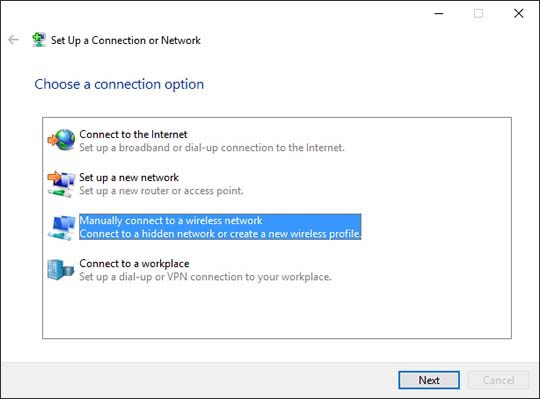
- SelectManually connect to a wireless networkthen selectNext.
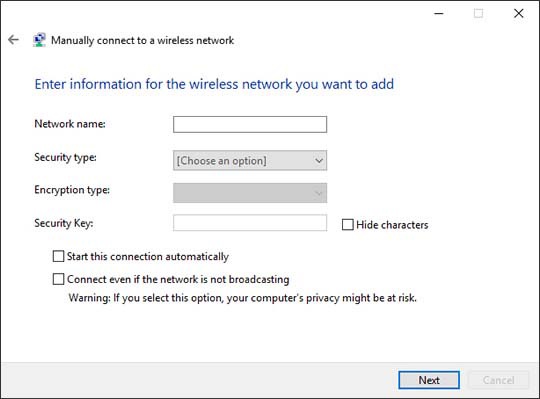
- Enter or configure the following info then selectNext:
- Network name
- Security type
- Encryption type
- Security key
- Start this connection automaticallySelected when a checkmark is present.
- Connect even if the network is not broadcastingSelected when a checkmark is present.Selecting this option might risk your computer's privacy.
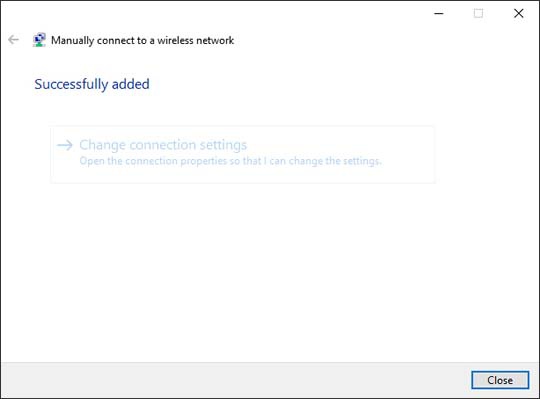
- SelectClose.