Windows 10 - Add a Personal / Corporate Email Account
Here's how to set up a personal / corporate email account on your Windows 10.
If your device isn't running Windows® 10, refer to the Windows 8 instructions.
- From the Windows desktop, navigate:.StartSettings icon
(lower-left)
Accounts - SelectEmail and app accounts, then selectAdd an account.
- SelectPersonal (IMAP)orPersonal (POP3).Check with your email provider or Exchange / IT admin to determine which account type to use.

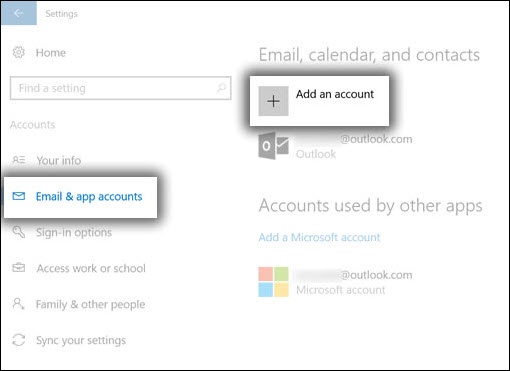
Add a Personal Email Account
Enter the appropriate account credentials (e.g., email address, password) then select 'Sign in' or 'Next'. 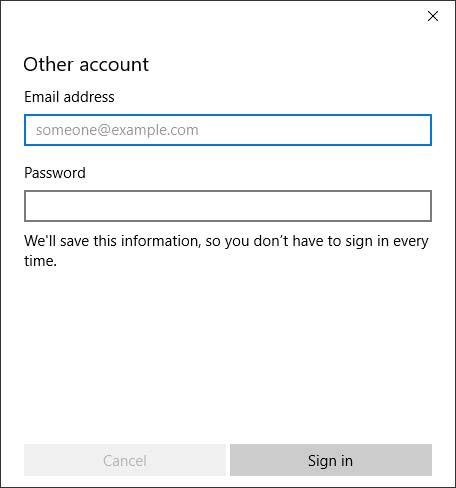
The steps to complete sign in may differ depending upon the account type.
If account settings aren't auto-detected, the settings can be entered manually.
Add a Corporate Email Account
Verizon verifies access to data services only, which can be checked by viewing a website. If you need assistance setting up a corporate email account, contact your Exchange / IT admin.
- Enter the appropriate email address then selectNext.
- Enter the password then selectSign in.