Wi-Fi Calling - Apple iPhone - Change Emergency Address
Here's how to change the emergency calling address for Wi-Fi Calling on your iPhone.
When turned on, Wi-Fi Calling may improve call quality while indoors on your Apple® iPhone®.
- From the Home screen, navigate:.SettingsPhoneIf unavailable, swipe left to access the App Library.
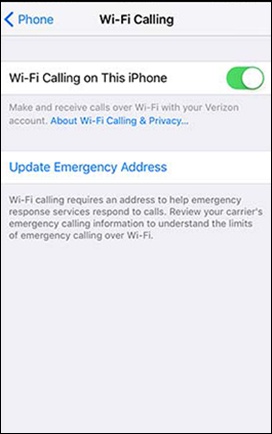
- TapWi-Fi Calling.If using an eSIM with a second line, select a line (e.g., Primary, Secondary, 888-888-8888, etc.).
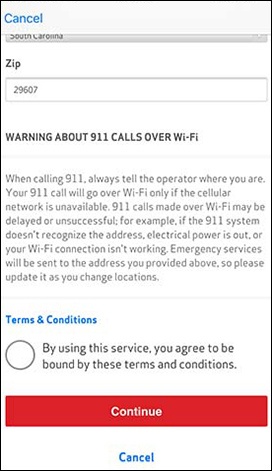
- TapUpdate Emergency Address.This info gets transmitted to the emergency dispatcher for all 911 calls made over a Wi-Fi network. If address validation fails then you are prompted to enter a new address until a valid address is entered.
- To proceed, from the Terms and Conditions screen, tap theradio buttonthen tapContinue.
- Do one of the following to return to the Home screen:
- For devices with Face ID, swipe up from the bottom of the screen.
- For devices with Touch ID, tap theHome button.