Windows 10 - Turn Bluetooth On / Off
Here's how to turn Bluetooth for your Windows device on or off and make it visible to other devices for pairing.
If your device isn't running Windows® 10, refer to the Windows 8 instructions.
- From the Home screen, select theAction Center iconlocated in the taskbar (lower-right).Utilize the touchscreen (if available) or mouse to select the on-screen options.
- SelectBluetoothto turn on or off.If necessary, clickExpandto view all options.
- On
- Off
- To make your computer discoverable by other Bluetooth® devices:
- OpenBluetooth Devices.From the Windows desktop, navigate .If using Windows 8/10, navigate: Right-click > In the search box, enter "Bluetooth" then selectChange Bluetooth settings.If using Windows 10 Tablet mode, navigate:.Settings iconBluetooth
- For discovery options, clickMore Bluetooth options(in the 'Related settings' section).
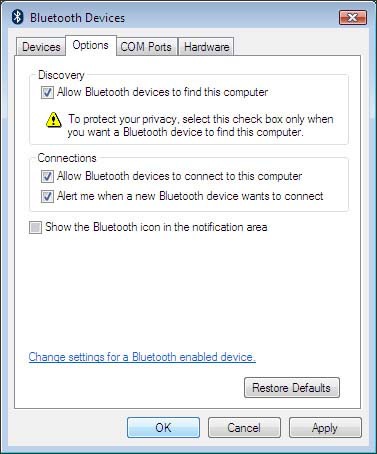
- From the Options tab, ensure the following are selected (checked) then clickOK.
- Allow Bluetooth devices to find this computer
- Allow Bluetooth devices to connect to this computer
- Alert me when a new Bluetooth device wants to connect




Don't miss a beat! Find the perfect headset or portable speaker in our accessory store.