Google Pay® - Add a Loyalty / Rewards Program
Here's how to add a loyalty or rewards card to Google Pay.
If you'd like to store a loyalty or rewards card in Google Pay, view this info.
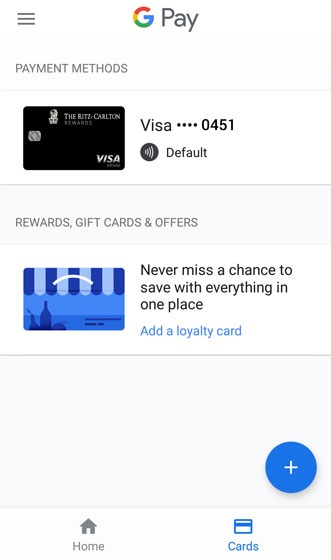
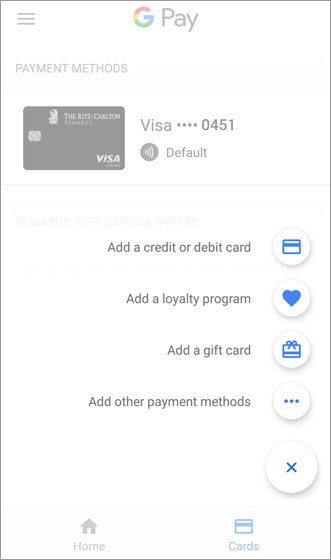
- From the Google Pay app, tap theAdd icon(in the lower-right) to add a card.For more info or to download the Google Pay app, click here.
- TapAdd a loyalty program.
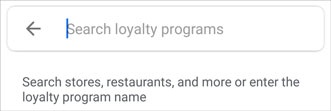
- Enter the name of the loyalty or rewards program then select the program from the list.
- Line up the bar code on the gift card in the photo viewer then take a picture.Alternatively, tapAdd Manuallythen enter the required info (e.g., card number, PIN, etc.).
- From the Loyalty program screen, enter any appropriate info (e.g., Balance, PIN, etc.) then tapSave.
- To be notified when the loyalty/rewards card can be used nearby, ensure the Notifications switch is on
.
If necessary, tap theswitchto turn it on.