Google Pay® - Initial Setup - Add a Payment Card
If you're adding a card during the initial setup of Google Pay, view this info.
Google Pay:
- is a secure wallet solution that stores credit cards, debit cards, loyalty cards, gift cards and more.
- allows you to use your smartphone for shopping in-store and online.
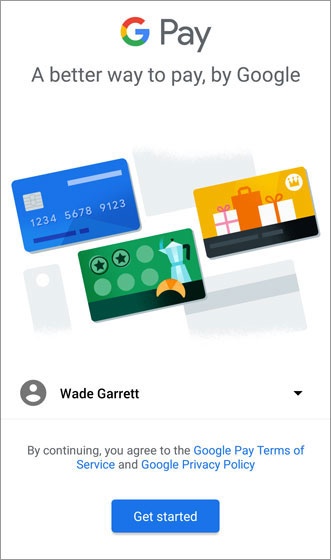
- From the app, tapGet started.If needed, tap the Dropdown icon
then select the appropriate Google account.
- From the app, tapAdd a card.
- Line up the payment card in the photo viewer then take a picture.Alternatively, tapAdd Manuallythen enter the required info (e.g., card number, expiration date, etc.).
- Enter the 3-digit security (CVC) number on the back of the card.
- Enter the street address.
- Confirm the card details then tapContinue.
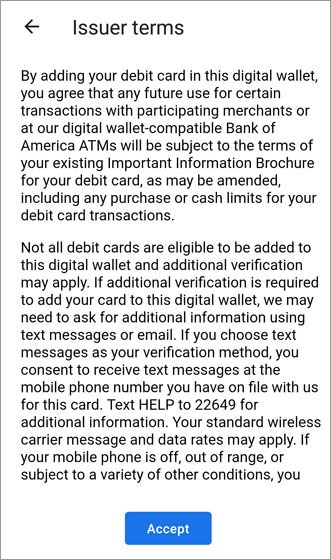
- To continue, review the Terms of Service then tapAccept.
- If no screen lock is currently set up on the device:A secure screen lock (e.g., pattern, PIN, etc.) is required to use Google Pay.If the screen lock is ever disabled, you're prompted to reset it or all cards are removed.
- TapActivate.
- Select the preferred screen lock type then follow the on-screen instructions for setup.
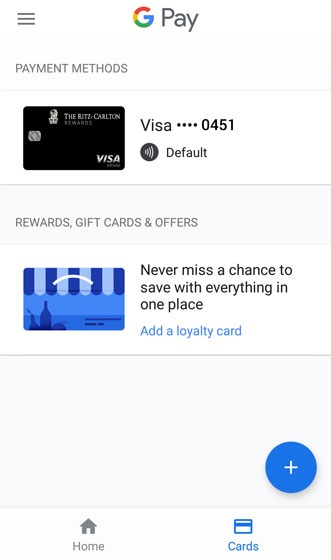
- The card is now visible in Google Pay.If presented, enter then re-enter a 4-digit Payments PIN.
 then
then