Verizon Cloud - Android - Merge Fios Cloud Content
Here's how to merge your Fios Cloud content with Verizon Cloud on your Android device.
If Verizon Cloud and Fios Cloud accounts are merged they can't be separated later.
- Merging Cloud content allows you to access files stored on your Verizon Cloud account and from your Verizon Fios Cloud account. You cannot merge two Verizon Cloud accounts together.
- The merge must be completed from the device. However, once the merge is complete, the content can be viewed from the Verizon Cloud website.
- Ensure your Verizon Cloud app is up to date on your Android™ device as the steps below apply to the most recent version.
- Open theVerizon Cloud app
.
- TapMore(lower-right).
- TapAccount & Content Tools.
- TapMerge content.
- TapLog Into Other Cloud Account.
- Enter the user ID and My Verizon password for the other cloud account then tapSign in.
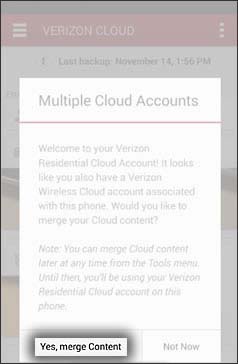
- TapYes, Merge Content.It may take 24-48 hours to fully merge content from both accounts.After merging, the user can access all of the content from either account.
Check out these Verizon Cloud FAQs to learn more.