Export Contact / Address Book Info to.CSV Files - Microsoft Windows Mail / Microsoft Outlook
Here's how export contacts from your device to comma-separated value (.csv) files via Microsoft Windows Mail / Microsoft Outlook.
A comma separated values (.csv) file is a text file that contains rows of data that are separated by commas.
Windows Mail
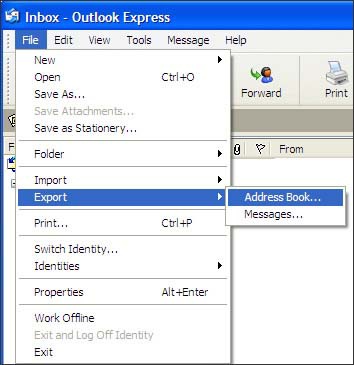
- Open Microsoft® Windows Mail then click .
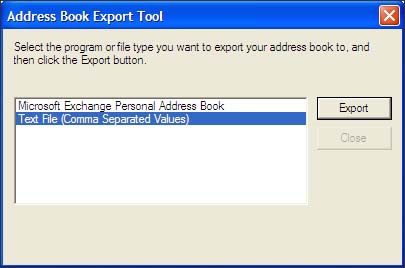
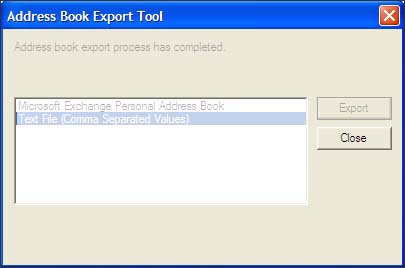
- In the Address Book Export Tool dialog box, clickCSV (Comma Separated Values).
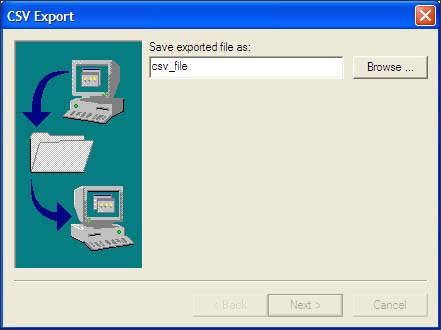
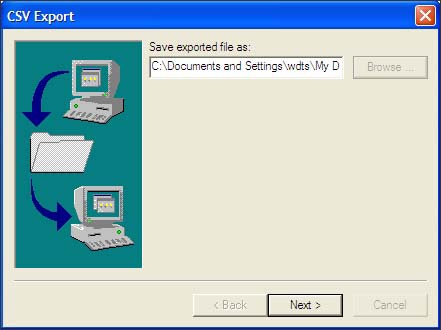
- In the Save exported file as: field, enter a file name for the exported Address Book file then clickBrowse.
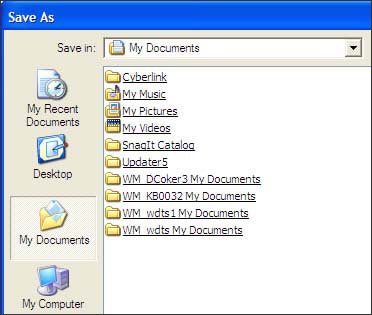
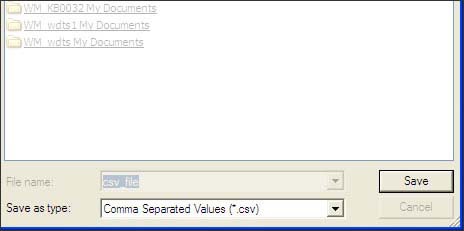
- In the Save in: field, specify a location in which to save the file.
- In the Save as type: field, select Comma Separated Values (*.csv) then clickSave.
- ClickNext.
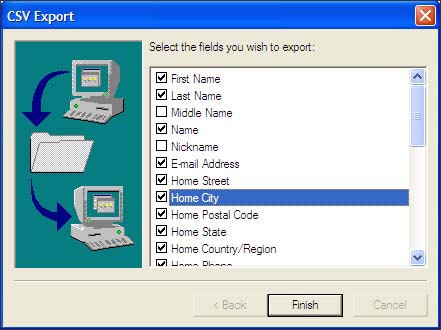
- Ensure the desired exports fields are selected then clickFinish.
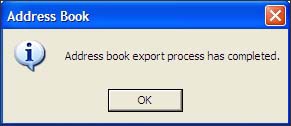
- When prompted, clickOKto confirm the export procedure has completed.
- ClickCloseto exit the Address Book Export Tool dialog box.
Outlook
- Open Microsoft® Outlook, then click .
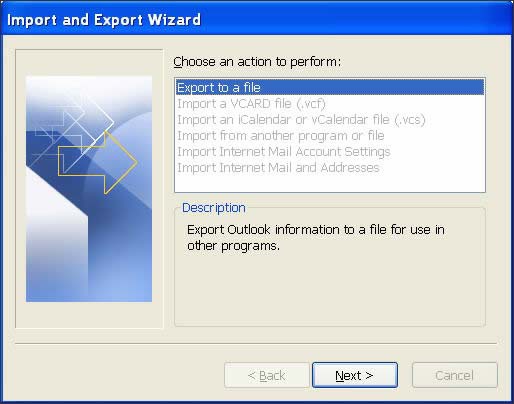
- Select Export to a file then clickNext.
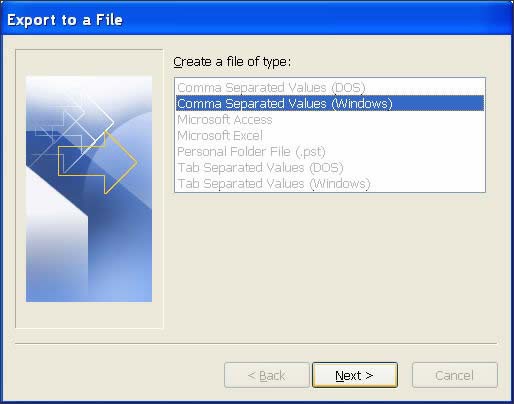
- Select Comma Separated Values (Windows) then clickNext.
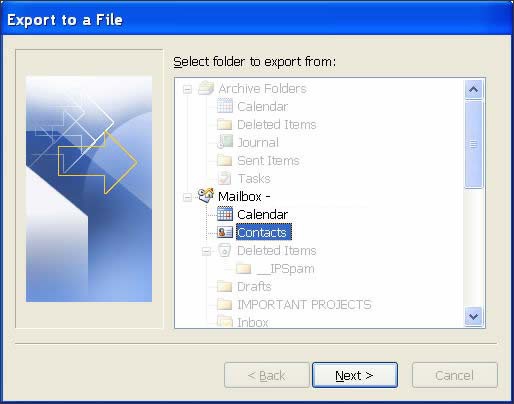
- In the folder list, select theContactsfolder then clickNext.
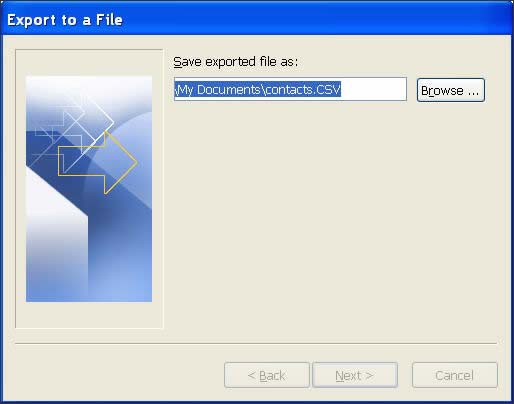
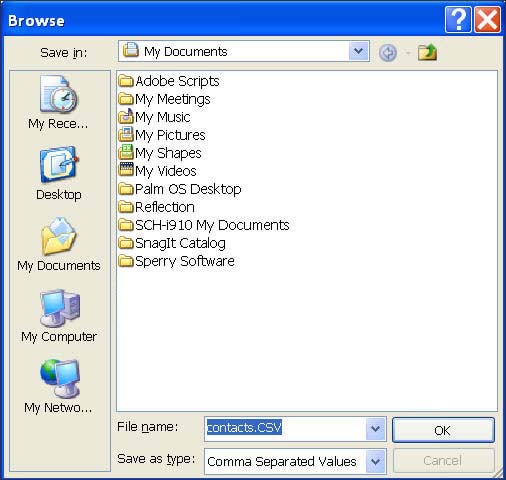
- Browse to the target folder to save.csv file.
- Enter a name for the exported file then clickOK.
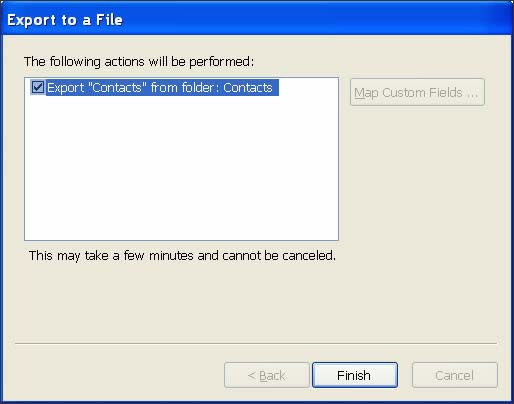
- Click .
For more info on exporting contacts via Outlook, check out this Microsoft support article.