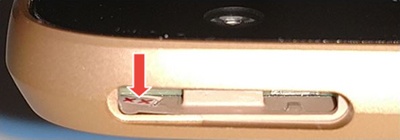
Check for Water Damage - Motorola
Here's how to help determine if your Motorola device has liquid damage.
Use the provided info below to help determine if your device has water damage.
- Prepaid service customers: Visit a Verizon store to order warranty replacements. Orders for prepaid warranty issues can't be processed via Customer Service.
- Standard service customers: If you need to replace your device under warranty and the device is water damaged, broken, or has unreasonable wear and tear, you could be assessed a Damaged Device Fee. If damage is found:
- Several replacement options may be available.
- If you have a LifeProof case, visit this support page. If you have a different protective case, contact the manufacturer to see if they have any guarantees against damage.
Motorola uses a white field with pink or red "X" marks to indicate a device that has had no liquid contact. When the indicator comes in contact with liquid, the "X" marks become pink or red smudge marks across the white field.
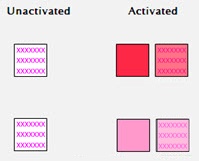
See below for an image of the indicator location within a specific device.
DROID 3 (located under the back cover):
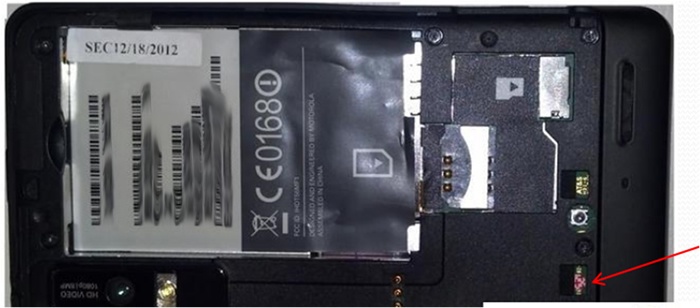
DROID 4 (under the battery):
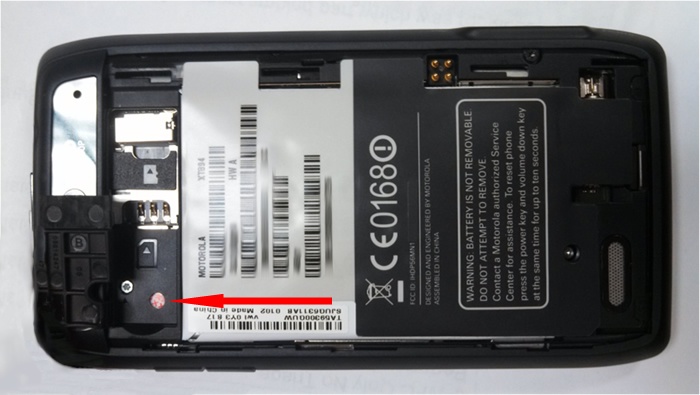
DROID BIONIC (under the back cover):
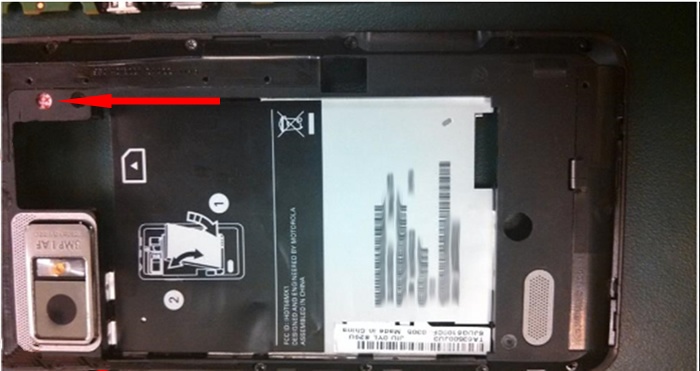
DROID Ultra / DROID MAXX (under the SIM tray):
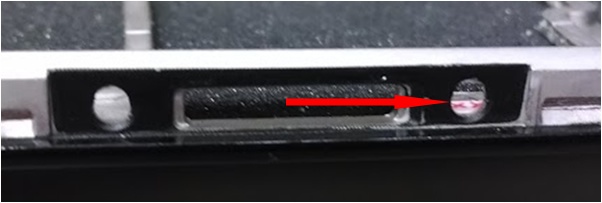
DROID Mini (in SIM slot):
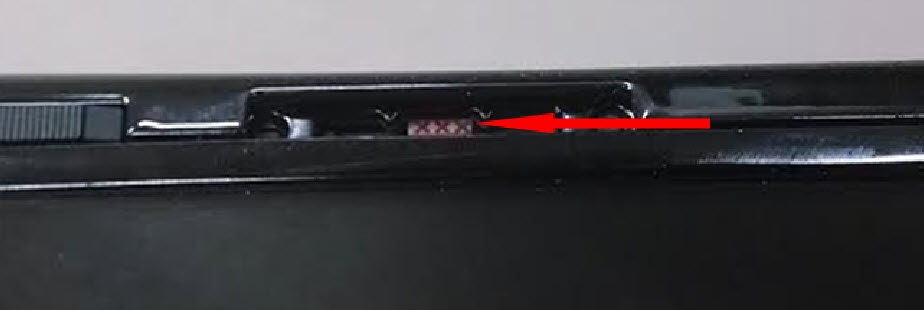
DROID RAZR/MAXX (in SIM slot):
to view the Liquid Detection Indicator.
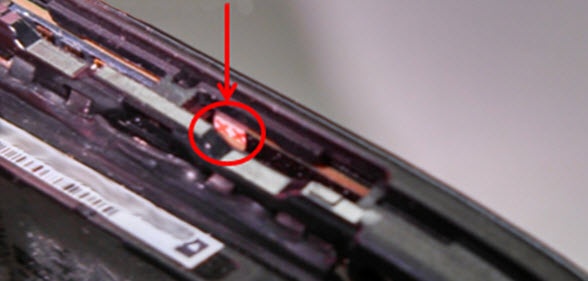
DROID RAZR HD/MAXX HD (in SIM slot):
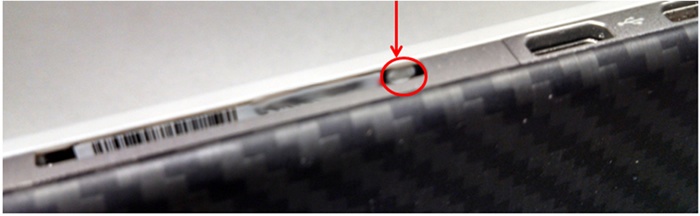
RAZR M / Luge (near Micro SD slot):
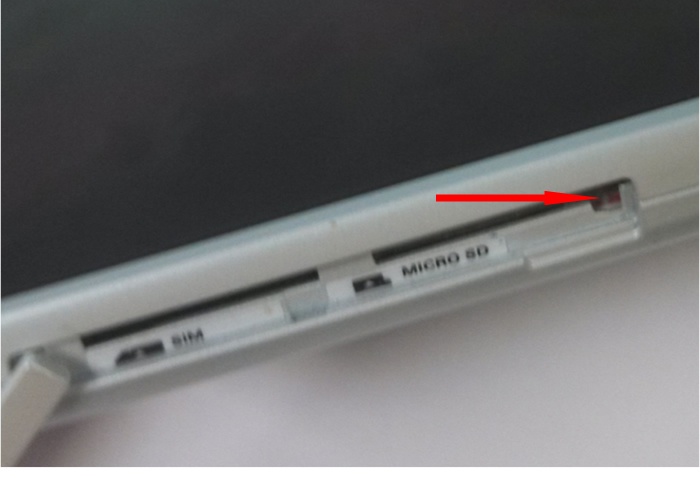
MOTO X (in SIM slot with SIM tray removed):
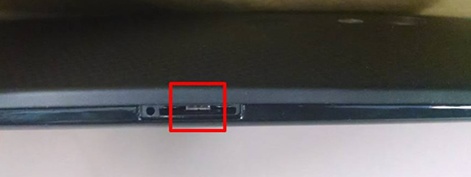
DROID X2 (under back cover):
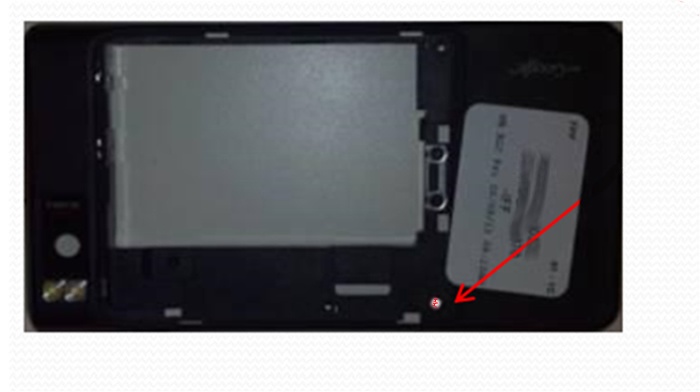
DROID Turbo (in SIM Slot):
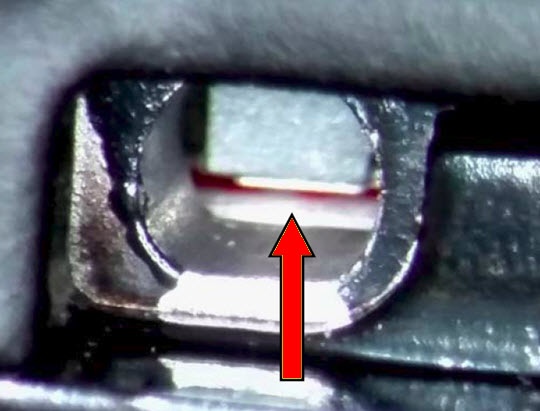
Nexus 6 (in SIM Slot):
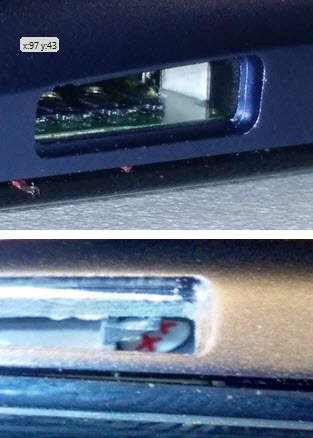
Moto E (under the band, left side of the device):
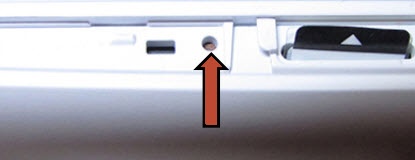
DROID MAXX 2 (in SIM slot):
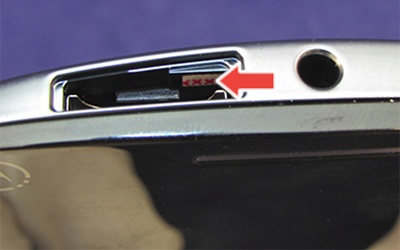
DROID Turbo 2 (in SIM slot):
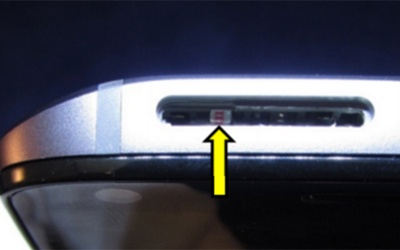
Z Droid / Z Force (in SIM slot):