Push to Talk Plus - App Settings
Here's how modify your app settings for Push to Talk Plus.
Ensure the PTT+ app has been updated to the most recent version for Android® or iOS.
Alert Settings
- From a Home screen, tap thePush To Talk+
app or navigate: .
- From a Home tab, tap theMenu icon
then tap
Settings.
- For any of the following, tap the appropriate switch to turn on
or off
:
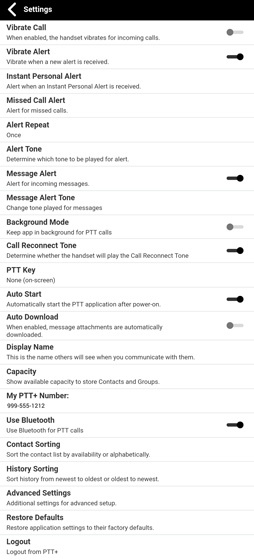
- Vibrate Call
- Vibrate Alert
- Message Alert
- TapInstant Personal Alertthen tap an alert option (i.e., Tone and display, Tone only, Display only, Off).
- TapMissed Call Alertthen tap an alert option (i.e., Tone and display, Tone only, Display only, Off).
- TapAlert Repeatthen select a repeat duration (i.e., Once, Repeat, Continuous.).This setting has a significant impact on battery life.
- TapMessage Alert Tonethen tap a tone (e.g., Alert 1, Alert 2, etc.) to enable.
Other Settings
- From a Home screen, tap thePush To Talk+
- From a Home tab, tap theMenu icon
- Tap theUse Wi-Fi switchto turn on
- From the menu tapSettings
- For any of the following, tap the appropriate switch to turn onOptions may vary depending upon device.
- Background Mode
- Call Reconnect Tone
- Speaker
- Auto Start
- Auto Download
- Use Bluetooth
- TapContact Sortingthen select a sort option (i.e., By Alphabetical, By Availability.).
- TapHistory Sortingthen select a sort option (i.e., Newest on top, Newest on bottom.).